
Watch step-by-step video on automations
1. Open Automations
Click the Automations icon (the robot face) at the bottom left of the menu. A panel opens on the right with your existing automations. Click Create Automation at the bottom of the panel.
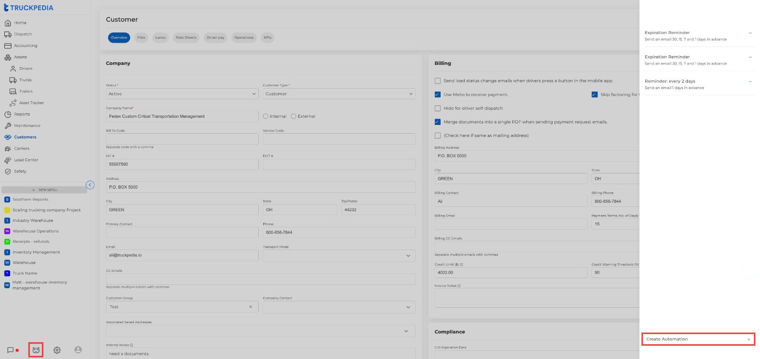
2. Choose a Trigger
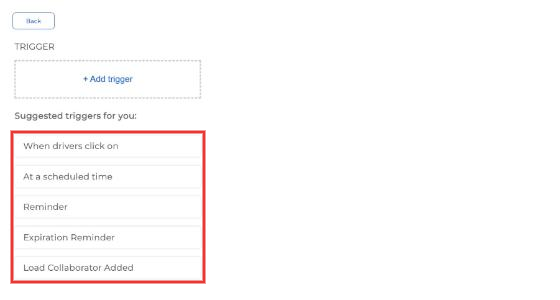
Pick what starts the automation:
- When drivers click on: runs when a driver taps a button or uploads a document in the Driver App.
- At a scheduled time: runs at a set time.
- Reminder: repeating reminders, for example a maintenance reminder every 30 days.
- Expiration Reminder: emails before documents like insurance, registration or a CDL expire.
- Load Collaborator Added: runs when someone is added as a collaborator on a load.
3. Example: Send load updates when drivers tap a button
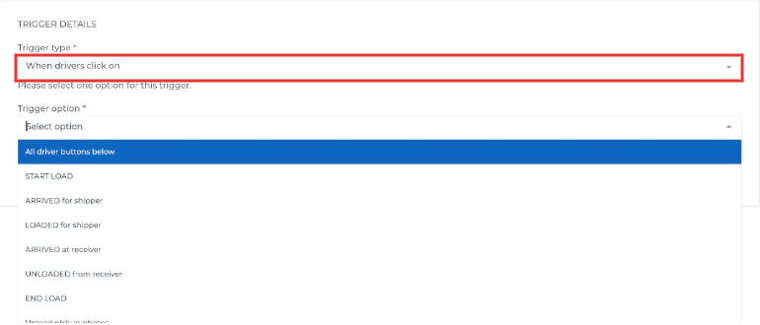
Choose When drivers click on, then pick the Trigger option. You can choose All driver buttons below or specific ones like START LOAD, ARRIVED for shipper, LOADED for shipper, ARRIVED at receiver, UNLOADED from receiver, END LOAD or a document upload. To send only certain documents (like the POD), see How to Automatically Send Pickup & Delivery Photos, BOLs, and PODs.
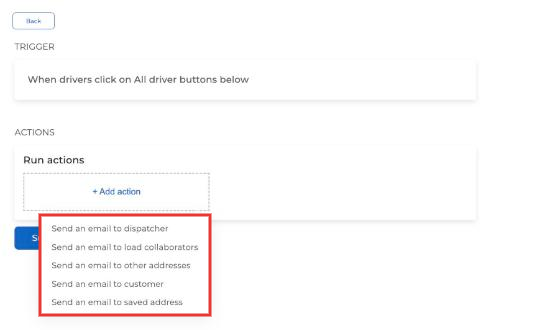
Under Run actions, click + Add action and choose who gets the email:
- Send an email to dispatcher (the dispatcher assigned to the load)
- Send an email to load collaborators: best for brokers, since the contact often changes from load to load
- Send an email to other addresses: enter any emails, separated by commas
- Send an email to customer: uses the customer’s default email
- Send an email to saved address: uses the emails saved on the pickup or delivery location
Click Submit to turn the automation on.
4. Set Up Expiration Reminders
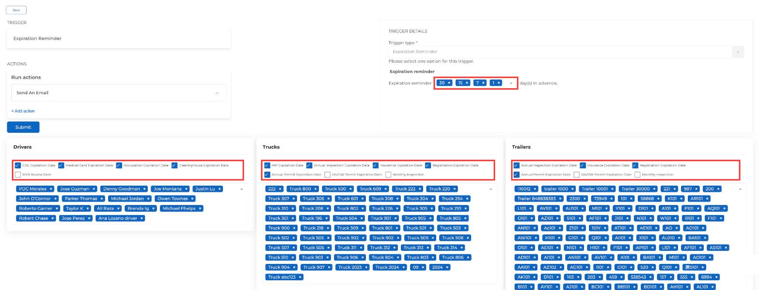
Use Expiration Reminder to get emails before driver, truck or trailer documents expire.
- Choose how many days in advance to send the reminder. You can pick several (for example 30, 15, 7 and 1 days).
- Check which dates to watch for Drivers (CDL, medical card, occupation, clearinghouse, MVR review), Trucks and Trailers (IRP, annual inspection, insurance, registration, permits, monthly inspection).
- Select the drivers, trucks and trailers to include.
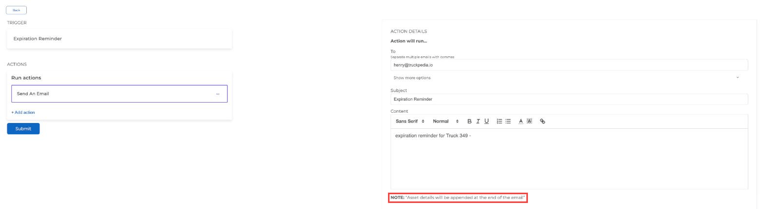
Add a Send An Email action, enter the recipients, a subject and the message. Asset details are added to the end of the email automatically. Click Submit.
5. Set Up Recurring Reminders
Use Reminder for things that repeat, like maintenance.
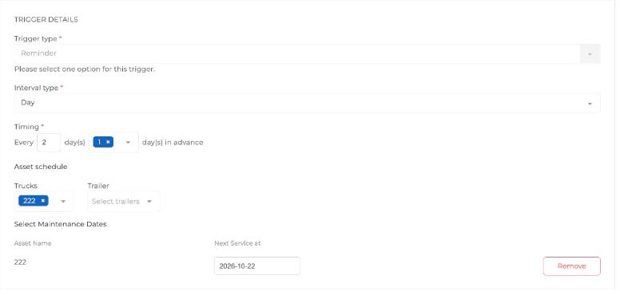
- Choose the Interval type (for example Day) and the Timing: every X days, and how many days in advance to send it.
- Under Asset schedule, pick the trucks and trailers, then set each one’s Next Service at date.
- Add a Send An Email action with the recipients and message, then click Submit.
Once you create an automation, it runs automatically based on its trigger or schedule. To change or remove one later, open the Automations panel and click it.
For any further assistance, contact help@truckpedia.io.