
Instead of opening loads one by one, you can now select several loads in the load list and move them all to a new status in one step. Truckpedia updates each load on its own and shows you exactly which ones changed.
Before you start
- Use the new load list (New List for Loads).
- You can change 2 to 50 loads at a time.
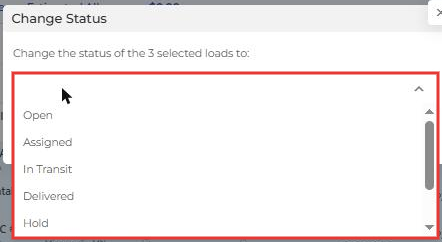
- You can move loads between these statuses: Open, Assigned, In Transit, Delivered, Hold, Ready For Review and Ready For Invoice.
Step 1: Select the loads
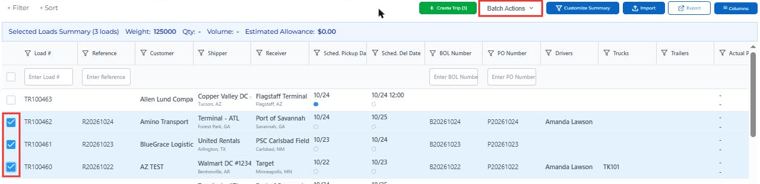
Go to Dispatch and tick the checkbox next to each load you want to update. Once two or more loads are selected, the Batch Actions button appears at the top of the list.
Step 2: Choose Change Status
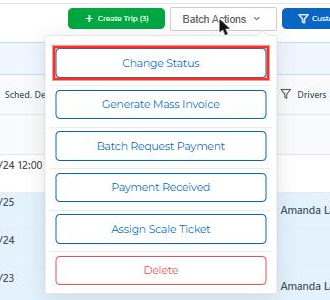
Click Batch Actions, then click Change Status.
Step 3: Pick the new status
In the Change Status window, choose the status you want and confirm.
Step 4: Review the results
Truckpedia processes each load separately and shows a result for every one:
- Success: the load was moved to the new status.
- Skipped (yellow): the load was already in that status, so nothing changed.
- Fail: the load could not be changed. The reason is shown next to it.
The load list refreshes in the background while the results stay on screen, so you can check them before closing the window.
Good to know: Draft and Canceled loads can't be changed with this action, and billing statuses (like Invoice Generated) can't be chosen as the new status. Those still follow the normal invoicing steps.
Other batch actions
The same Batch Actions menu also lets you Generate Mass Invoice, Batch Request Payment, mark Payment Received, Assign Scale Ticket and Delete loads.