
Truckpedia now integrates with Mudflap. Once connected, your Mudflap fuel transactions are imported automatically every day and show up in Fuel Expenses, trip Financials and driver profit numbers.
What you need
- A Mudflap account and your Mudflap access token (you can get this from Mudflap).
- Admin access to Account Settings in Truckpedia.
Step 1: Open the Fuel Card integrations
Click the gear icon to open Account Settings, then click Integration and choose the Fuel Card tab. Mudflap is now listed with the other fuel card partners.
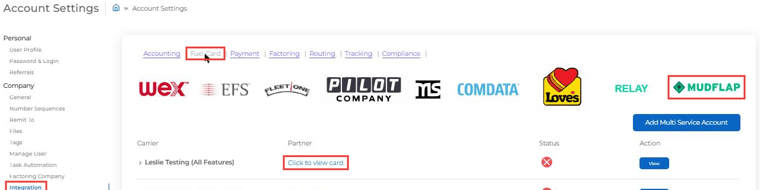
Step 2: Find Mudflap for your carrier
Next to the carrier (or tag) you want to connect, click Click to view card. to show the available fuel cards. Find Mudflap and click Connect.
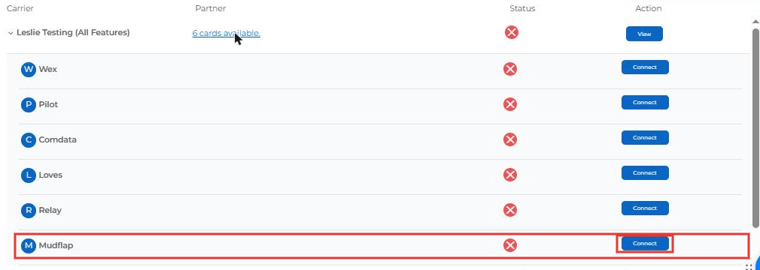
Step 3: Paste your access token
Paste your Mudflap access token into the Access Token box and click Submit. The status for Mudflap changes once it's connected.
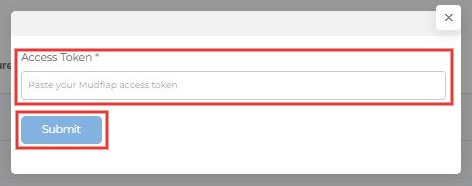
Step 4: View your Mudflap transactions
Go to Accounting → Fuel Expenses → Automated Transactions. Choose Mudflap in the Select Fuel Card Source dropdown to see imported transactions with Date, Location, Quantity, Amount, Product, Fuel Card, Driver, Truck and Trailer.
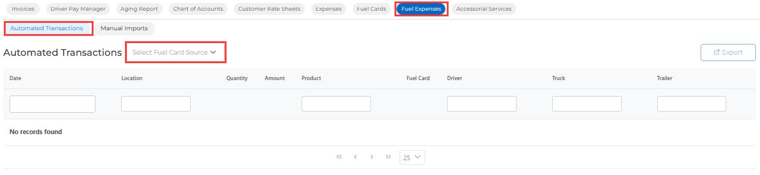
How the sync works
- Transactions sync once a day. Each sync pulls the last 10 days plus today, so late-posting transactions are picked up.
- Transactions are matched to your active drivers and trucks.
- Purchases that net to $0 are skipped.
- Mudflap fuel, non-fuel and adjustment lines count toward company expenses, the driver's expenses and profit on the Home tab, and the Fuel Expenses section of trip Financials.
Tip: Mudflap only appears in the Select Fuel Card Source dropdown after it's connected. If you don't see transactions the day you connect, check back after the next daily sync.