
When a driver drops a trailer or picks one up, they record it in the Truckpedia Driver App. The swap is saved on the load right away, so dispatch knows exactly which trailer is where, and the trailer's history stays up to date.
The four trailer actions
- Drop Loaded Trailer: you're leaving a loaded trailer at this stop.
- Drop Empty Trailer: you're leaving an empty trailer.
- Hook Loaded Trailer: you're picking up a loaded trailer.
- Hook Empty Trailer: you're picking up an empty trailer.
How to drop or hook a trailer
- Open the load (or trip) from the In Progress tab.
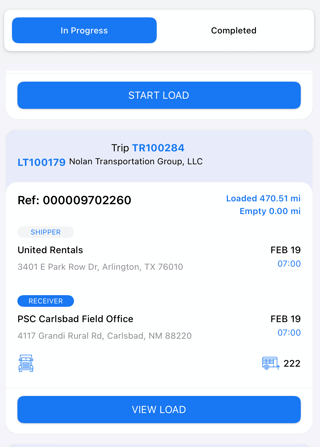
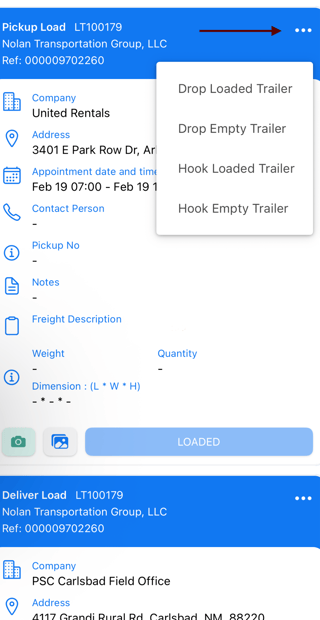
- On the stop where you're swapping trailers, tap the ••• menu at the top right.
- Choose the action: Drop Loaded, Drop Empty, Hook Loaded or Hook Empty Trailer.
- Pick the trailer from the list (search by number), then tap Submit.
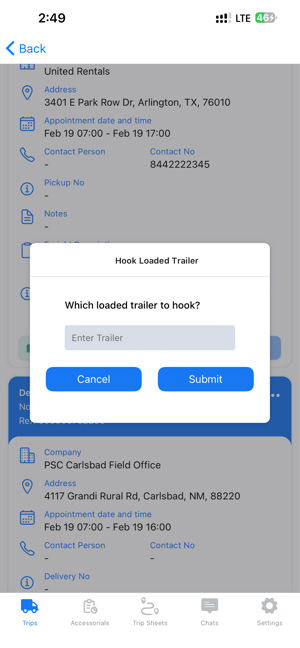
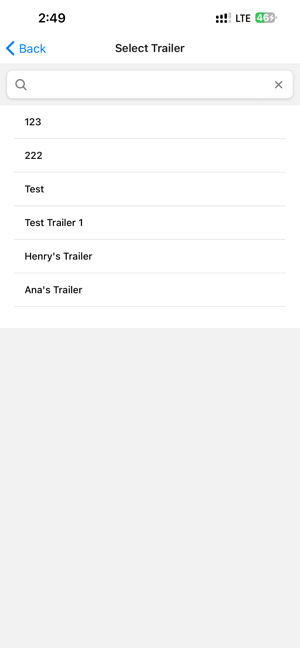
That's it. The swap is saved the moment you submit.
What dispatch sees
- The trailer action and trailer number show on the stop in Step 2: Shipper/Leg/Receiver of the load.
- The load's Activities tab logs each event with the time and who did it, for example "Dropped loaded trailer" and "Hooked loaded trailer".
- Assets → Trailers → Trailer Logs keeps every drop and hook with the trailer, date, location, load and driver.
For more on the dispatcher side, see How to Drop & Hook Trailers in Truckpedia.
Tips for drivers
- Record the swap at the stop where it happens, not later.
- Double-check the trailer number before you submit.
- If the trailer you need isn't in the list, ask dispatch to add it.
Questions? Email help@truckpedia.io.