
You can now link a saved address to a Branch label and use it as a driver's Home Terminal. Once drivers have a home terminal, you can filter the New List for Loads view by it, so each terminal team sees only the loads their drivers are running.
This guide covers the setup from start to finish:
- Check that the terminal address is saved
- Create a Branch label and choose its terminal address
- Set the Home Terminal on the driver's profile
- Filter loads by Driver Home Terminal
Step 1: Check that the terminal address is saved
The terminal address comes from your saved addresses, so make sure it's there first.
- Click the gear icon at the bottom of the left sidebar to open Settings.
- Under Admin, click Saved Addresses.
- Look for your terminal in the list. If it isn't there, click Add Address and save it.
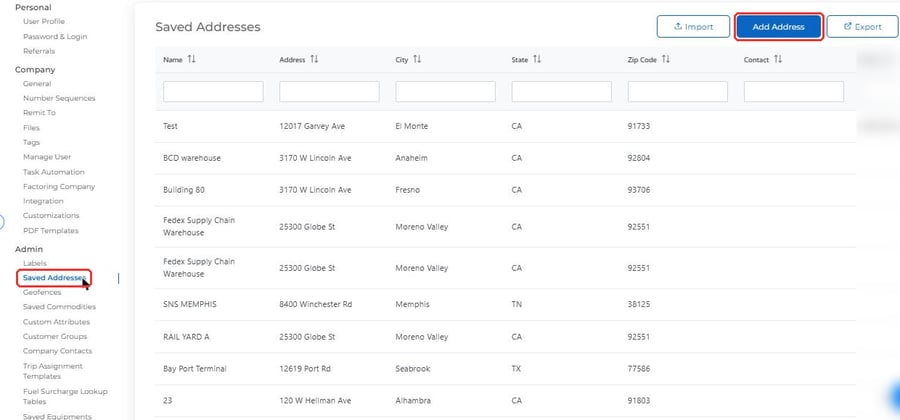
Step 2: Create a Branch label for the terminal
- In Settings, under Admin, click Labels.
- Click Create Label in the top right.
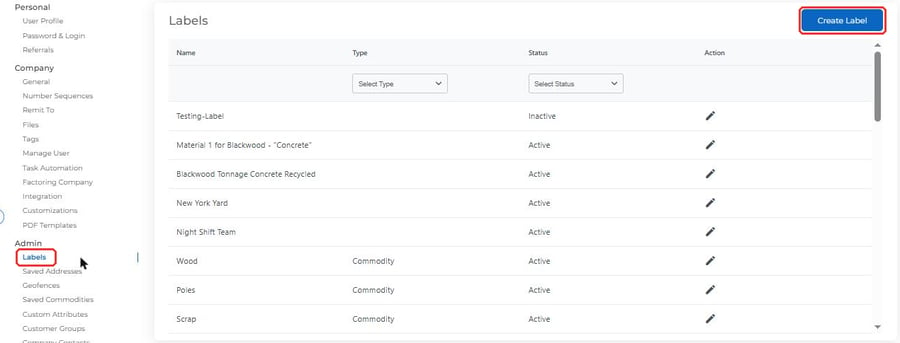
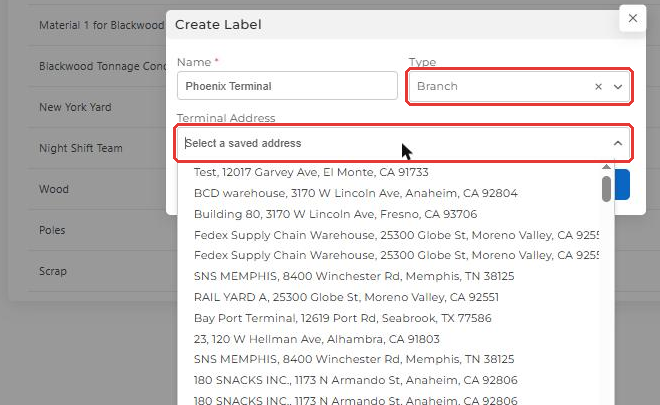
- Enter a Name for the terminal, for example Phoenix Terminal.
- Set Type to Branch. A new Terminal Address field appears.
- Open Terminal Address and pick the saved address for this terminal. You can type to search the list.
- Check the details and click Submit.
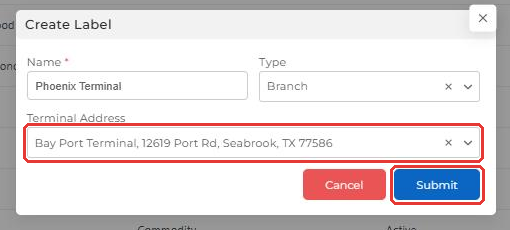
Tip: The Terminal Address field only shows up for Branch labels. Commodity labels don't have one. Create one Branch label for each terminal or yard you run out of.
Step 3: Set the driver's Home Terminal
- Go to Assets → Drivers and click the edit icon next to the driver.
- Find the Home Terminal field. Hover over the info icon next to it for a quick reminder of where terminals come from.
- Choose the Branch label you created in Step 2.
- Click Save at the bottom of the driver profile.
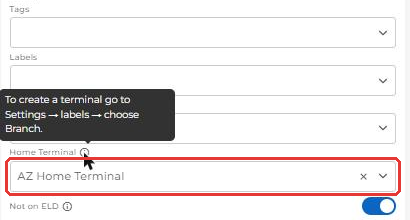
Repeat this for each driver who works out of that terminal.
Step 4: Filter loads by Driver Home Terminal
- Go to Dispatch and open the New List for Loads tab.
- Click + Filter.
- Type home terminal in the search box and choose Driver Home Terminal.
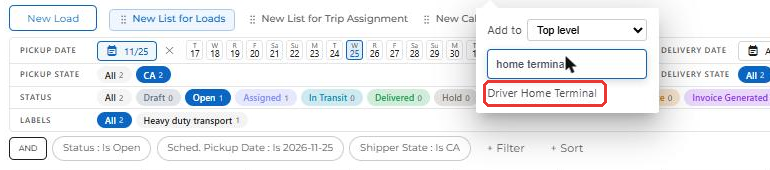
- Leave the condition as is, then pick one or more terminals from the list.
- Click Save. The list now shows only loads assigned to drivers from those terminals.
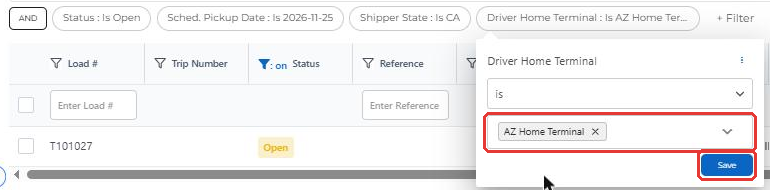
To remove the filter later, click the Driver Home Terminal filter chip, open the ⋮ menu and choose Delete Filter.
Tip: Combine Driver Home Terminal with other filters, like Status or Pickup Date, and save it as a view so each terminal manager has their own list ready to go.
💬 Need help? Contact us anytime at help@truckpedia.io.