
Click Accounting in the left menu. These three tabs at the top handle your expenses and fuel records:
- Expenses: any expense you add yourself, including fuel paid with cash or an unconnected card
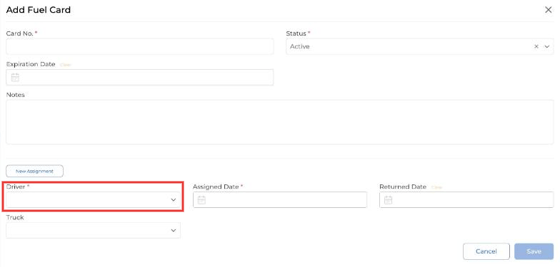
- Fuel Cards: your fuel card numbers and which driver has each card
- Fuel Expenses: fuel transactions from connected fuel cards, plus fuel files you import
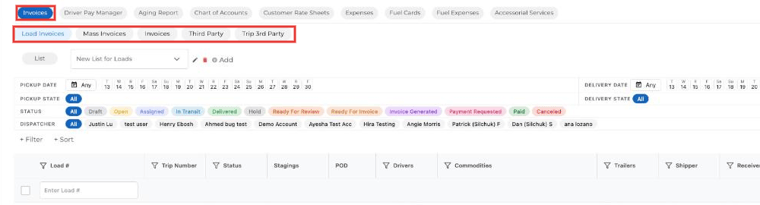
Add a fuel expense manually
If a driver paid cash or used a card that isn't connected:
- Go to Accounting → Expenses and click New.
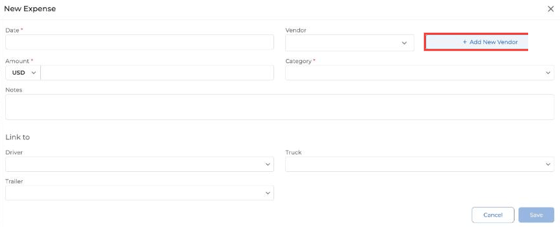
- Enter the date, amount and vendor, and choose the Fuel Expense category.
- Link the driver, truck or trailer if you want.
- Click Save.
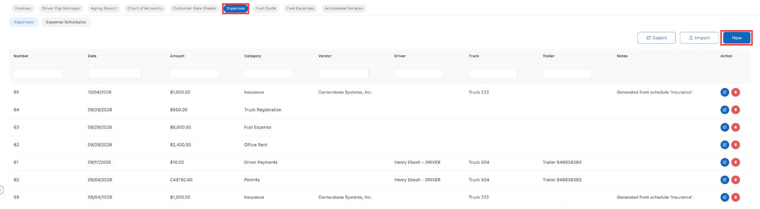
Use the Expenses tab for anything a fuel card doesn't track, like truck repairs, roadside service or office bills.
Note: Fuel added on the Expenses tab doesn't show up in IFTA reports.
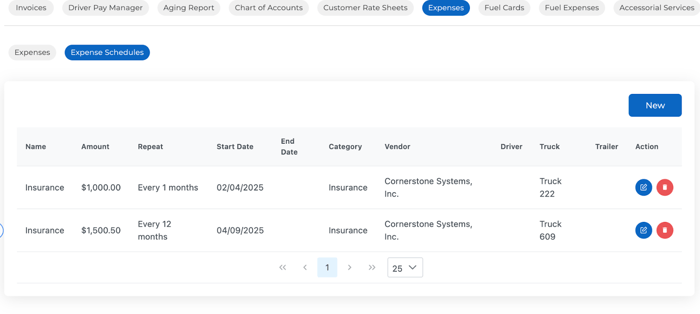
Recurring expenses (Expense Schedules)
Next to Expenses is the Expense Schedules tab. Use it for costs that repeat, like monthly insurance. Set the name, amount, how often it repeats, start date and category, and Truckpedia adds the expense for you on schedule.
Link drivers to fuel cards
On the Fuel Cards tab, click New, enter the card number and assign the driver (and truck, if you like). Once a card is assigned, every transaction on it shows the right driver in Fuel Expenses automatically. Just keep the assignments up to date.

The Fuel Expenses tab
The Fuel Expenses tab has two parts:
- Automated Transactions: purchases pulled in automatically from connected fuel cards. See How Do I Connect My Fuel Card.
- Manual Imports: upload a file of fuel purchases from a card that isn't connected. See How to Import your Fuel Expenses.

Remember: For the driver's name to show on a fuel transaction, the card has to be added and assigned to that driver on the Fuel Cards tab.
Questions? Email help@truckpedia.io.