
Adding a Driver
To add a new driver, follow these steps:
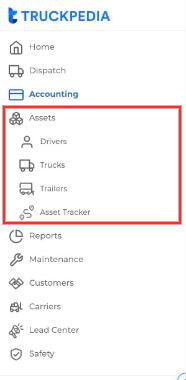
- Go to Assets → Drivers in the left menu.
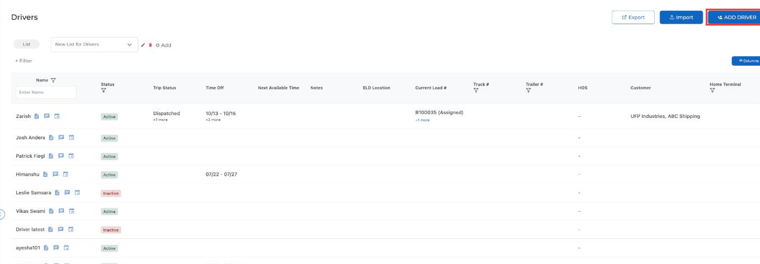
- Click ADD DRIVER in the top right to open the driver form.
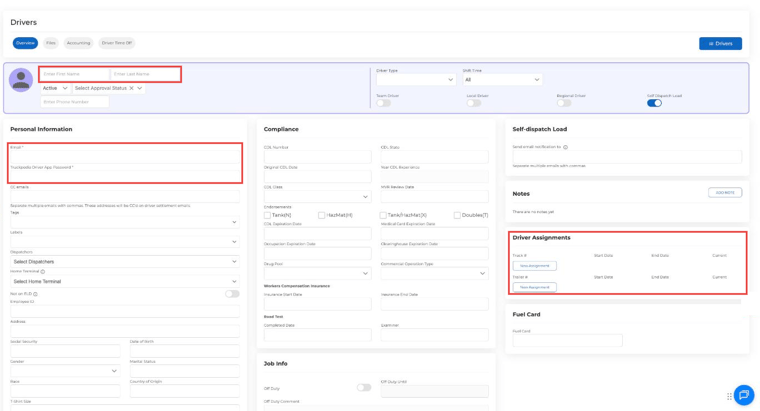
- Enter the driver’s first and last name.
- Enter the driver’s email address. It can be personal or business, but it must be unique to that driver.
- Create a Truckpedia Driver App Password. The email and password are the driver’s login for the Truckpedia Driver App.
- Click Save.
Additional steps:
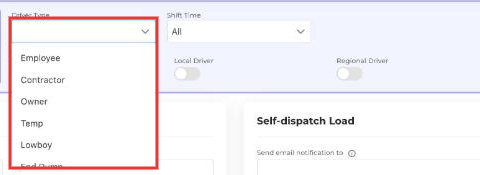
- Fill in other details like phone number, Driver Type (Employee, Contractor, Owner and more), tags, dispatchers, home terminal and compliance dates (CDL, medical card and so on).
- Make sure the driver turns on location sharing in the Truckpedia Driver App. This is needed for real-time tracking.
- Assign a truck and trailer in the Driver Assignments section. Click New Assignment, pick the truck or trailer and add a start and end date. Turn on Current for the active assignment.
- Upload documents (driver’s license, CDL, medical card) in the Files tab.
- Click Save after making any updates.
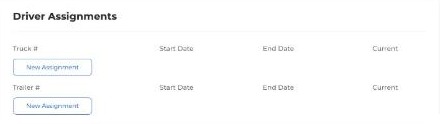
Once the driver is created, the profile has these tabs: Overview, Files, Accounting, Driver Pay, Driver Time Off and Custom Attributes.
Adding a Truck
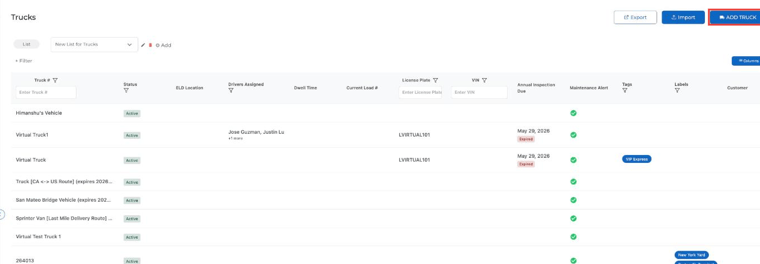
- Go to Assets → Trucks.
- Click ADD TRUCK to create a new truck profile.
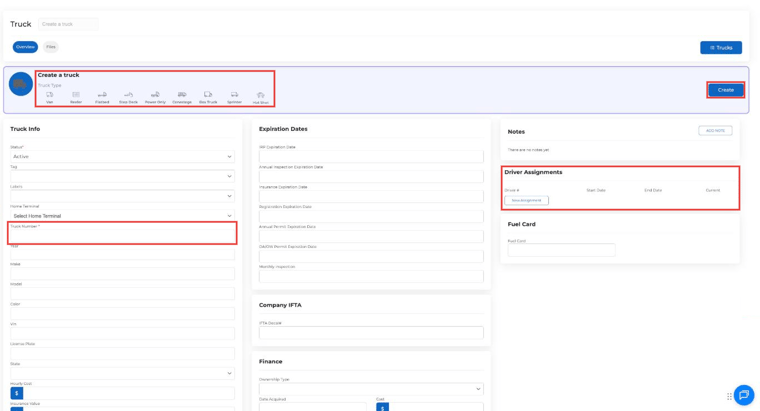
- Pick the Truck Type (Van, Reefer, Flatbed, Step Deck, Power Only, Conestoga, Box Truck, Sprinter or Hot Shot).
- Enter the Truck Number and click Create.
- Fill in other details, such as year, make and model, VIN, license plate, state, IFTA decal number and expiration dates.
Additional steps:
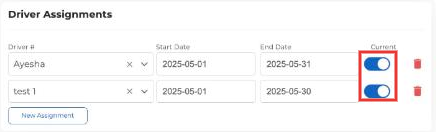
- Assign a driver to the truck in Driver Assignments. Turn on Current for the active driver, or add start and end dates for a temporary assignment.
- Upload documents (registration, insurance) in the Files tab.
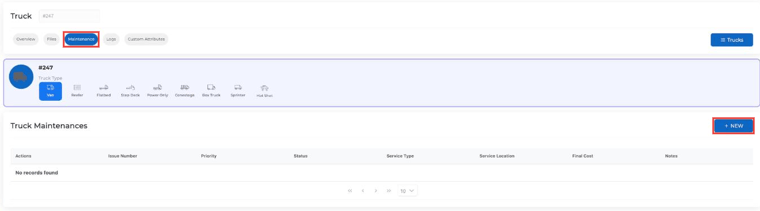
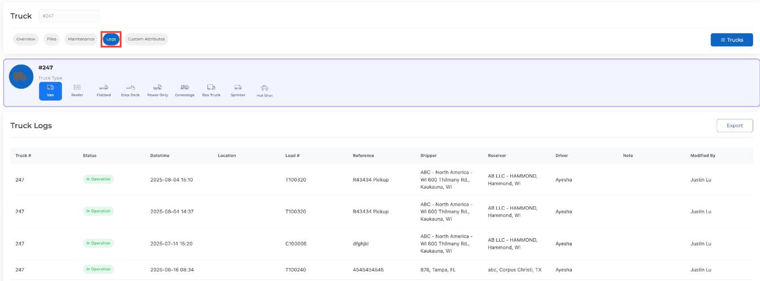
- Once the truck is created, use the Maintenance tab to log repairs and service, and the Logs tab to see every load the truck has run.

Adding a Trailer
- Go to Assets → Trailers.
- Click ADD TRAILER to create a new trailer profile.
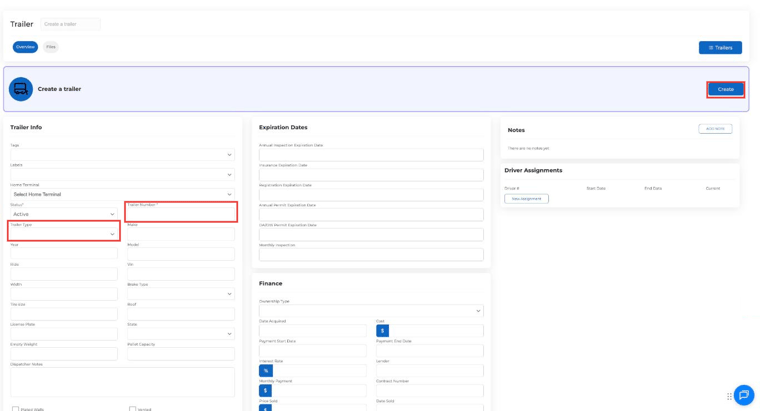
- Enter the Trailer Number and Trailer Type, then click Create.
Additional steps:
- Add details like make, model, VIN, license plate, empty weight and Pallet Capacity.
- Assign the trailer to a driver in Driver Assignments if needed.
- Upload documents (registration, inspection reports) in the Files tab.
Using the Asset Tracker
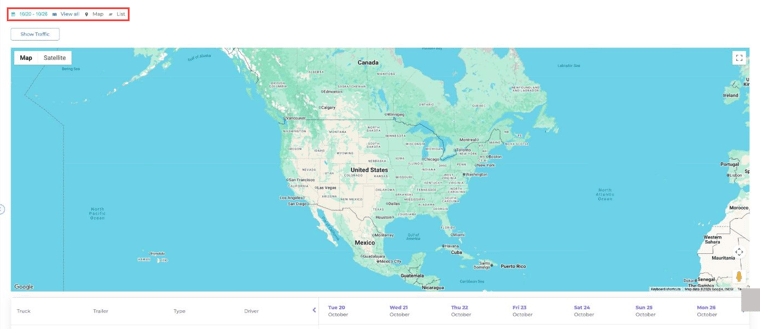
The Asset Tracker shows where your assets are in real time.
- Go to Assets → Asset Tracker.
- Switch between Map and List, pick a date range, or click Show Traffic.
- Below the map, a weekly schedule shows each truck, trailer and driver with the loads they’re running.
You can also build saved lists with filters and columns for drivers, trucks and trailers. See How to Create and Customize Lists for Drivers, Trucks, and Trailers.
For any further assistance, contact help@truckpedia.io.