
Adding Folders for Drivers
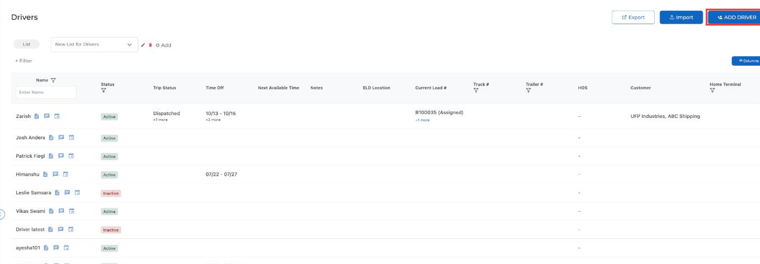
- Go to Assets → Drivers.
- Open a driver (or click ADD DRIVER for a new one).
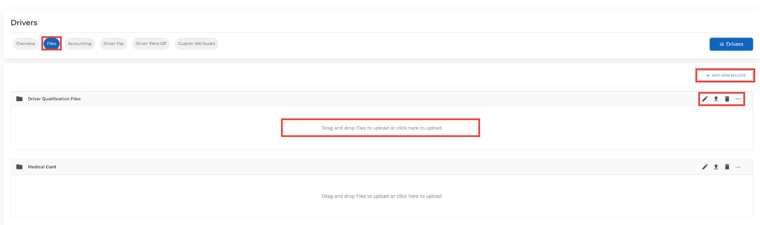
- Select the Files tab. Driver profiles have these tabs: Overview, Files, Accounting, Driver Pay, Driver Time Off and Custom Attributes.
Create a New Folder
- Click + ADD NEW FOLDER on the right side.
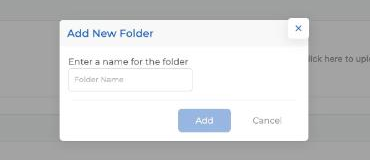
- Enter the folder name in the pop-up and click Add.
Note: The folder will be available under every driver’s Files tab. You don’t need to create it separately for each driver.
Uploading Files to a Folder
- Drag and drop a file into the folder, or click inside the folder area to choose a file.
- You can also click the upload icon on the folder row.
- Use the pencil to rename a folder, the trash icon to delete it, and the dash to collapse it.
- Keep your records up to date by uploading important documents like driver’s licenses and medical cards in the right folders.
- For assistance, contact help@truckpedia.io.