
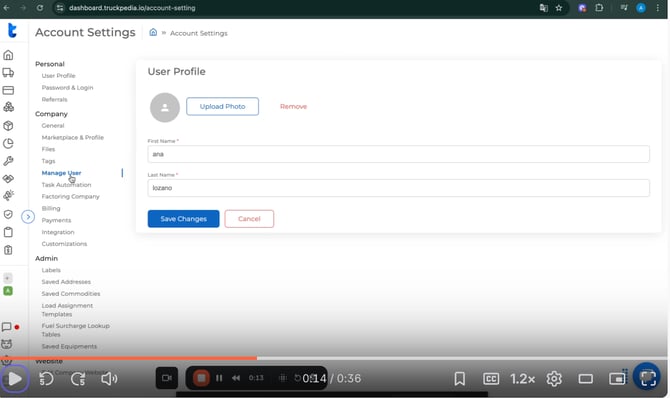
Step 1: Go to Settings
Click the gear icon at the bottom left of the menu to open Account Settings.
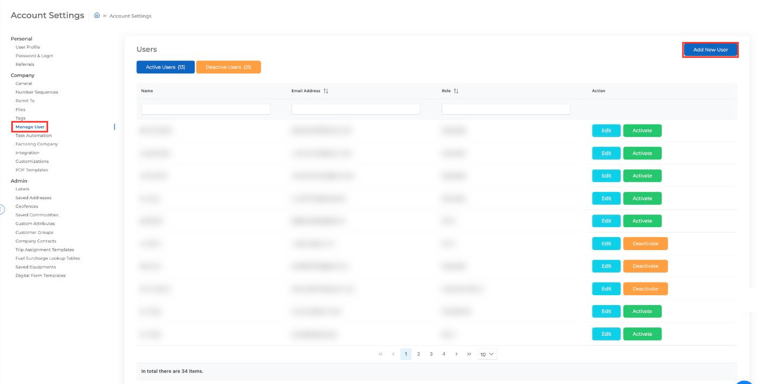
Step 2: Select “Manage User”
Under the Company section, click Manage User. You’ll see your Active Users and Deactive Users.
Step 3: Click “Add New User”
Click Add New User in the top right to open the form.
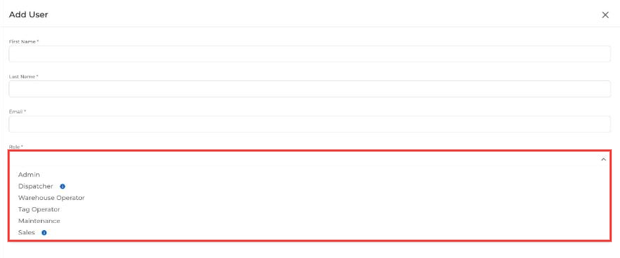
Step 4: Fill Out User Info
Add the following details:
- First Name
- Last Name
- Role (see below for role definitions)
- Tags (optional, used to limit a Tag Operator to specific tags)
Step 5: Click “Submit”
Once you click Submit, Truckpedia will automatically send an email to the new user inviting them to set up their password and log in.
👥 Understanding User Roles in Truckpedia
When adding a new user, you’ll need to assign them a role. Here’s a quick guide to help you choose the right one:
Admin:
- Home Dashboard
- Dispatch & Load Details
- Accounting & Billing (Invoices, Driver Pay, Expenses, etc.)
- Driver & Carrier Management
- Reports (Accounts, Customers, Drivers, Equipment)
- Maintenance
- Customer & Carrier Details
- Safety and Incident Reports
- Company Settings
Dispatcher
- Access all Dispatch and Load Details
- View and edit Drivers, Assets, Customers, Carriers, and Safety modules
- Manage Accounting functions like Invoices, Driver Pay, and Expenses
- Use most Reports (except Account, Customer, and Driver reports)
- Access Maintenance
- Modify some Settings (⚠️ partial access)
Great for operations staff who need access to loads, scheduling, and financial info without touching company-wide settings.
Dispatcher (Basic)
- Use Dispatch and Load Details only
- View Assets (Trucks and Trailers)
- View Equipment Reports
- See Customer Overview
- Access Safety and Incident Reports
Note: Dispatcher (Basic) is no longer offered when adding a new user, but you may still see it on existing users.
They cannot access accounting, detailed reports, driver/carrier management, or company settings. Ideal for junior dispatchers or part-time logistics support.
Warehouse Operator
- View-only role for dock/yard staff
- Can see assigned loads
- Can view pickup and delivery times
- Can view documents and pictures (like BOLs, delivery photos)
- Cannot create or edit loads
- No access to billing, driver pay, or other modules
Designed for warehouse or yard personnel who need visibility into load movements but should not modify anything.
Tag Operator
- Can view only loads associated with their assigned tag
- No access to other modules
- Cannot create or edit loads
- Cannot view billing or driver pay
- Inside a load, access is limited to:
- Details
- Documents
- Pictures
For dispatchers or team members who should only access loads linked to a specific terminal or tag.
Maintenance
- Access only to the Maintenance module
- Can view Drivers, Trucks, Trailers, and Assets
- Within each, only the Overview and Files tabs are visible
- No access to Dispatch, Accounting, or Driver Pay
- View-only role — no ability to edit records or settings
Ideal for mechanics or fleet personnel focused solely on maintenance and equipment, with no access to operational or financial data.
Sales
- Limited access to Customers, Carriers, Marketing, CRM, Lead Finder, Inbox and marketing campaigns
- No access to Dispatch, Accounting or Driver Pay
Ideal for sales team members who prospect and manage customer relationships.
That’s it! You’ve now invited a new user to join your team in Truckpedia. 🎉
If you need help with anything else, reach out to us at help@truckpedia.io.