
Your settlement PDF is what your drivers see every pay period. With PDF Templates, you decide what goes on it: which details show in the header, the order of each section, where your logo and company info sit, and whether to include extras like a profit and loss summary or fuel expenses. You see a live preview as you go.
Step 1: Open PDF Templates
- Click the gear icon at the bottom left to open Settings.
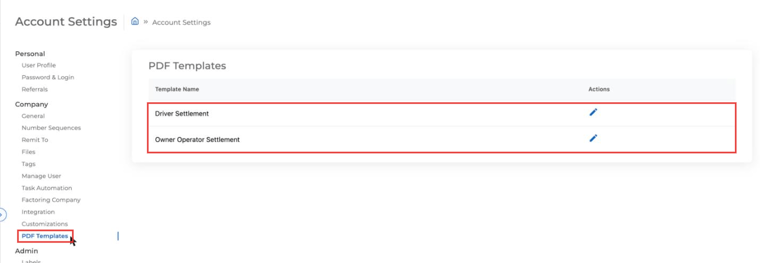
- Under Company, click PDF Templates.
- Click the pencil icon next to Driver Settlement or Owner Operator Settlement, depending on which PDF you want to change.
Step 2: Customize the layout
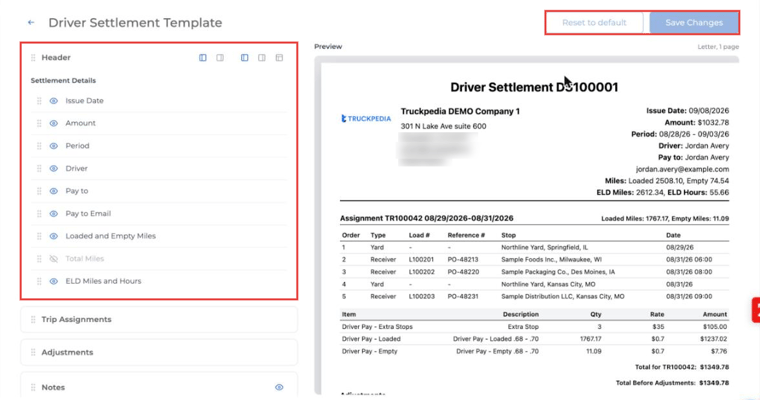
The editor shows your sections on the left and a live, letter-size preview on the right. Every change shows up in the preview right away.
Header and settlement details
- Click the eye icon next to a detail to show or hide it on the PDF, for example Issue Date, Amount, Period, Driver, Pay to, Pay to Email, Loaded and Empty Miles, Total Miles, or ELD Miles and Hours.
- Drag a detail by its handle to change the order.
- Use the icons at the top of the Header card to place your company block on the left or right, and your logo to the left of, to the right of, or above your company info.
Sections
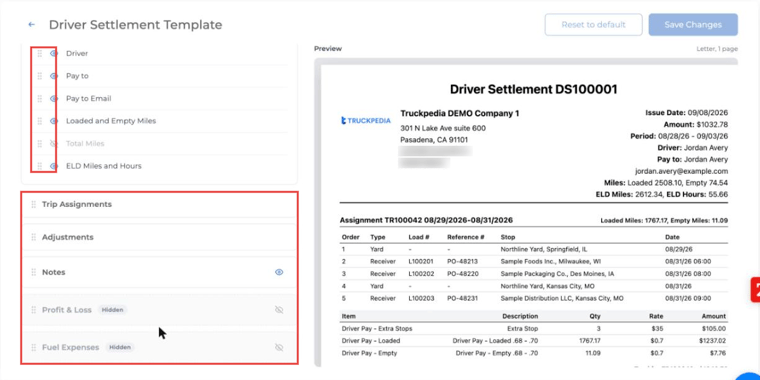
Below the header you'll find the other sections of the PDF: Trip Assignments, Adjustments, Notes, Profit & Loss and Fuel Expenses.
- Drag a section to move it up or down the page.
- Click the eye icon to show or hide a section. Hidden sections are marked Hidden. Profit & Loss and Fuel Expenses are hidden by default.
Step 3: Save
Click Save Changes. From now on, every settlement PDF you generate or email uses this layout. If you want to start over, click Reset to default.
Step 4 (optional): Set an Account Payable email
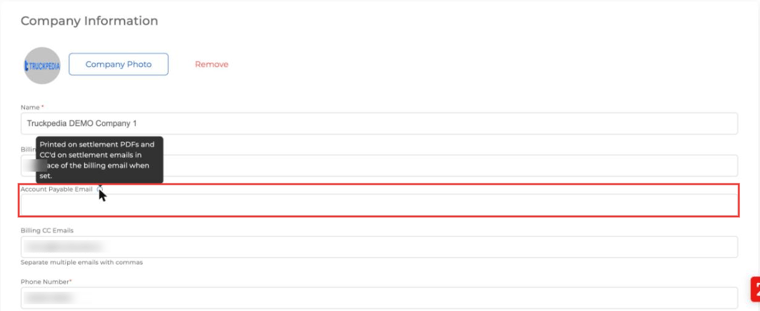
By default, settlement PDFs show your billing email, and settlement emails CC it. If driver pay questions should go to a different inbox, add an Account Payable Email:
- For your company: go to Settings → Company → General and fill in Account Payable Email, then click Save Changes.
- For a tag company: go to Settings → Company → Tags, open the tag and fill in Account Payable Email. Settlements paid under that tag use the tag's email.
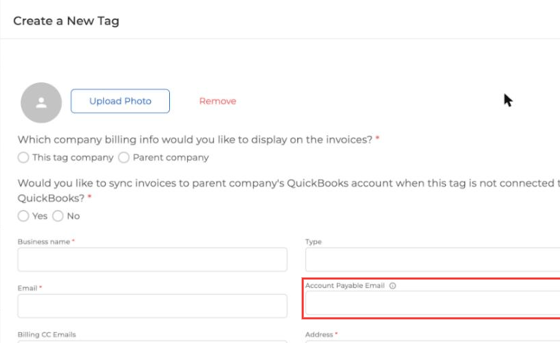
When it's set, the Account Payable Email is printed on settlement PDFs and CC'd on settlement emails instead of the billing email.
Tips
- Keep the PDF simple. Hide details your drivers don't need so the important numbers stand out.
- Turn on Profit & Loss or Fuel Expenses only if you want drivers to see them, for example for owner operators who run their own business.
- Check the preview before saving. It shows how long settlements will flow onto extra pages.
Questions? Email help@truckpedia.io.