
How to Duplicate a Load
- Open the load in Dispatch.
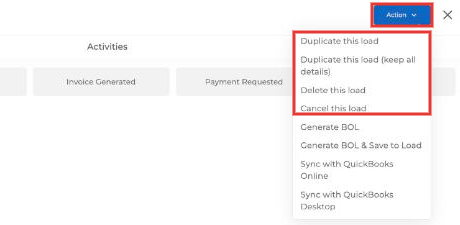
- Click Action in the top right and choose:
- Duplicate this load: copies everything except the dates and assets (driver and equipment).
- Duplicate this load (keep all details): copies the load with all of its details.
- Update the dates and assign a driver or equipment as needed, then click Submit.
How to Cancel a Load
- Open the load you want to cancel.
- If a driver is assigned, go to Step 4 of the load, remove the driver and click Save.
- Then click Action → Cancel this load.
- Confirm. The load is marked as Canceled and stays in your load list. To see canceled loads, click Canceled in the status bar at the top of the list.

How to Delete a Load
- Open the load you want to delete.
- If a driver is assigned, go to Step 4 of the load, remove the driver and click Save.
- Then click Action → Delete this load.
- Confirm the deletion. The load is removed from your active lists.
How to Restore a Load
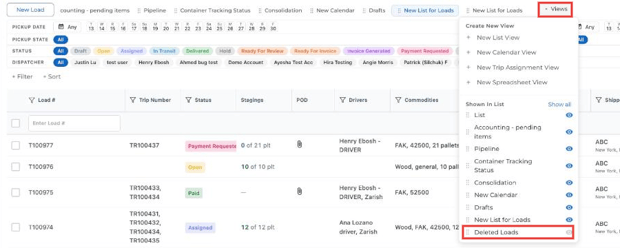
- Deleted loads: go to Dispatch → Views → Deleted Loads, open the load and click Restore Deleted Load. See Where Can I Find Deleted Loads?
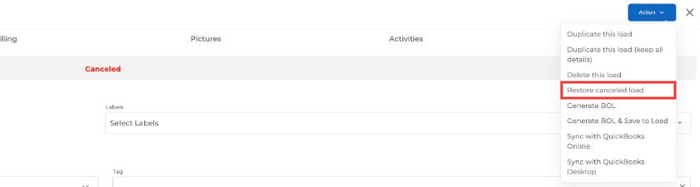
- Canceled loads: filter the list by Canceled, open the load and click Action → Restore canceled load. The load goes back to its previous status.
For any further assistance, contact support at help@truckpedia.io.