
How it works
You can now send a rate confirmation to a third-party carrier and get their answer back in Truckpedia. No more chasing signed PDFs over email.
- You tender the trip. On a third-party carrier trip, pick a tender option, set a Carrier respond by time, and save.
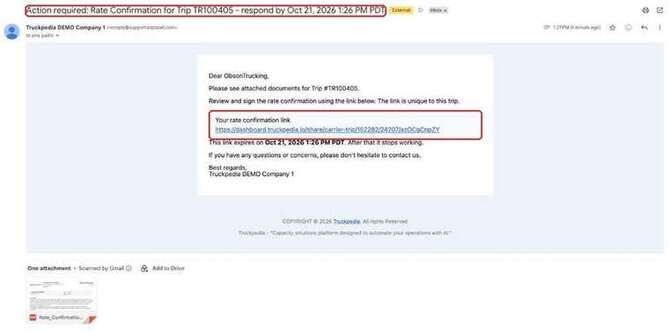
- The carrier gets an email with the rate con (and BOL, if you chose it) plus a private link to accept or decline.
- The carrier answers on that page. They type their name and click Accept or Decline. No login needed.
- You see the answer on the trip: who signed and when, in the trip's tender status line and Activity Log. Both sides get an email.
If the carrier doesn't answer by the deadline, the link expires and everyone is emailed.
Part 1: Send the rate confirmation
Step 1. Open the trip
Open a trip assigned to a Third Party Carrier from the Trip list, Trip 3rd Party list or Load Detail. Make sure the carrier is selected and has an email address on file. The carrier's CC emails get a copy too.
Step 2. Pick a tender option
Below Payment Items, choose one of:
- Tender Load to Carrier: sends the rate confirmation.
- Tender Load & BOL to Carrier: sends the rate confirmation and the BOL.
Hover the info icon to see what happens: the carrier gets the rate con with a link to accept or decline, and can respond until the Respond by time.
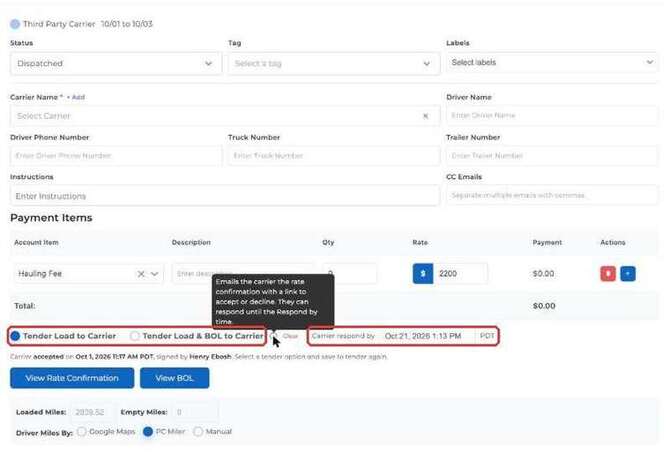
Step 3. Set the Carrier respond by time
A Carrier respond by picker appears next to the options. It defaults to 48 hours from now and shows your local time zone. You can pick any time from now up to 7 days out.
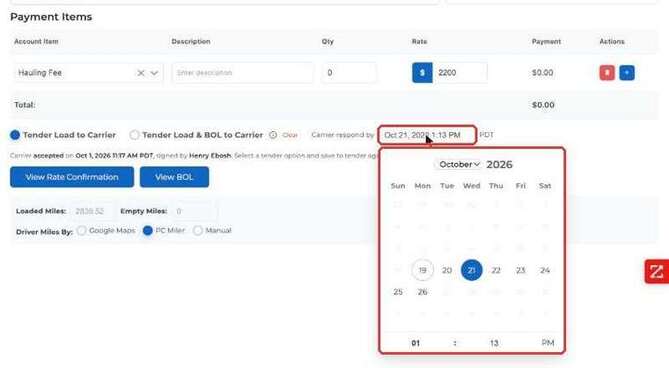
Step 4. Save
Click Save Changes. Truckpedia emails the carrier right away. The subject reads like this: Action required: Rate Confirmation for Trip TR100407 - respond by Oct 3, 2026 11:15 AM PDT. The email has the PDFs attached and a link that is unique to that trip.
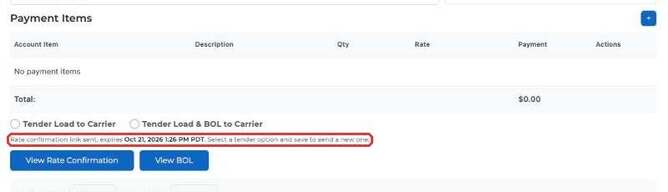
Back on the trip, the status line now says the link was sent and when it expires.
Part 2: What the carrier sees
The carrier clicks the link in the email. The page opens without a login and shows:
- The rate confirmation PDF, plus a link to the BOL if you sent it
- The trip number, your company name and the carrier name
- The Respond by time, in the carrier's own time zone
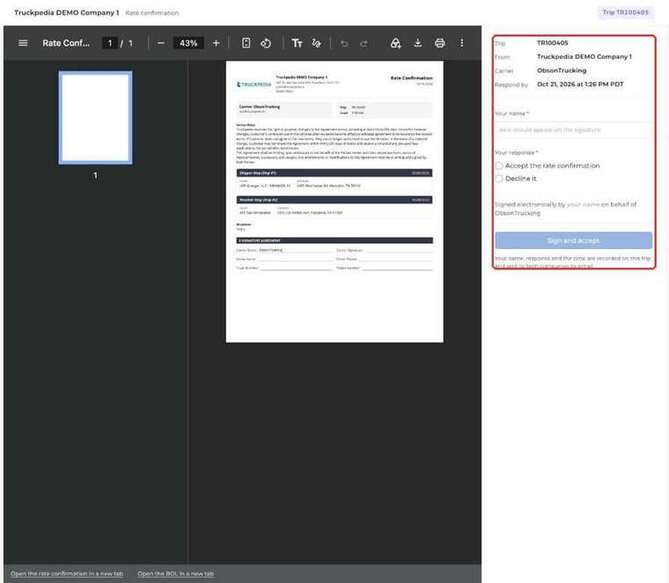
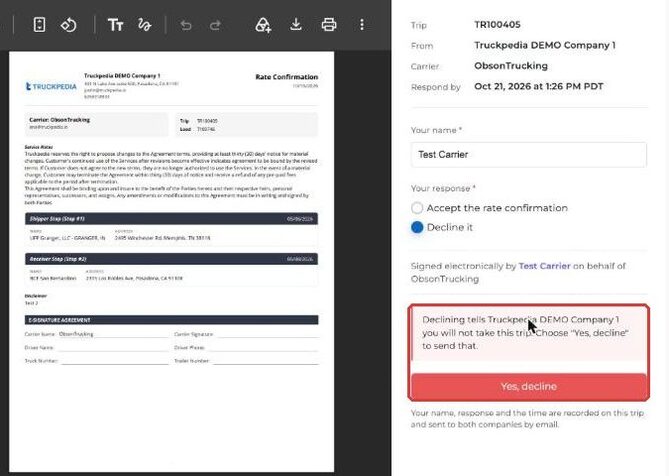
To answer, the carrier types their name, picks Accept the rate confirmation or Decline it, and clicks Sign and accept (or Decline the rate confirmation). The page shows that their name will be recorded as the electronic signature.
Declining asks once more before it's sent. The carrier clicks Yes, decline to confirm.
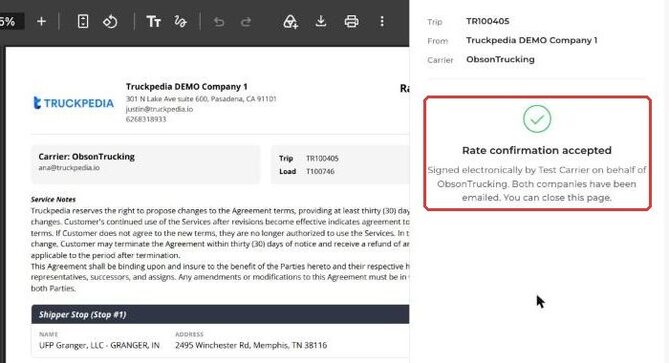
Once they submit, the carrier sees a confirmation. Both companies are emailed.
After answering, the page shows Already accepted or Already declined. The link stays up, so the carrier can come back to the rate con later.
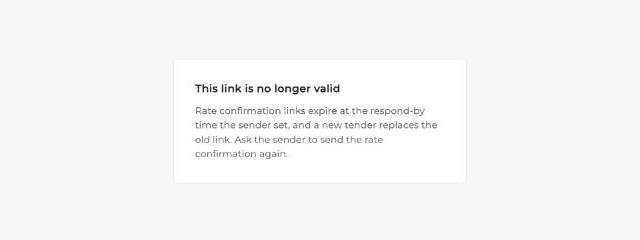
If the link has expired or been replaced by a newer tender, the carrier sees This link is no longer valid and is asked to have the rate con sent again.
Part 3: Track the answer
Tender status line
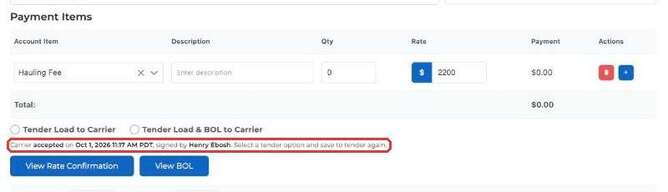
Open the trip. A status line under the tender options shows one of three states, always with the time zone:
- Link sent, and when it expires
- Carrier accepted or declined, when, and who signed
- Link expired without an answer
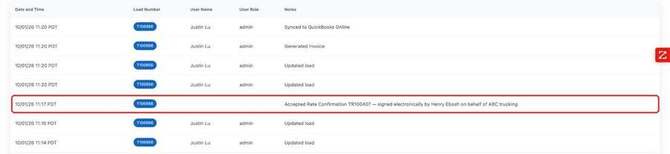
Activity Log
The trip's Activity Log tab records the answer. For example: Accepted Rate Confirmation TR100407 — signed electronically by Henry Ebosh on behalf of ABC trucking.
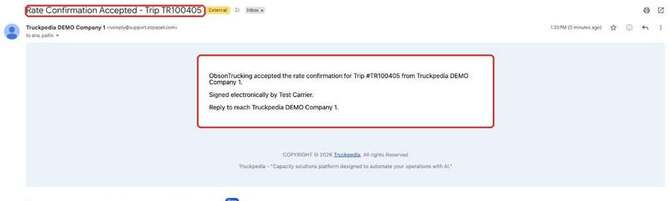
Emails
- When the carrier answers, both your company and the carrier get an email.
- If the deadline passes with no answer, the link stops working. The carrier gets an expiry email, with your company and the carrier's CC list copied.
Send it again
To re-tender (after a decline, an expiry, or a change to the rate), pick a tender option again and save. This sends a fresh link with a new deadline, and the old link stops working.
Good to know
What if I change the carrier after tendering? The old carrier's tender is cleared, so the new carrier never sees the previous answer. Tender again to send the new carrier a link.
Does the carrier need a Truckpedia account? No. The link works without a login and is unique to that trip and carrier.
Can the carrier change their answer? No. Once they accept or decline, the page shows the recorded answer. To ask again, send a new tender.
What if the carrier has no email on file? Add one on the carrier's profile before tendering, or the carrier won't get the link.
Can I send the rate con without asking for a response? Yes. Use View Rate Confirmation to open and share the PDF yourself.