
Different ways to factor step-by-step video
Overview of Factoring Methods in Truckpedia TMS
There are three main ways to process factoring in Truckpedia:
- Direct integration with your factoring company
- Factoring by email (for companies without an integration)
- Manual document upload (for companies that don’t accept integrations or email)
1. Direct Integration with Your Factoring Company
Who should use this? If your factoring company is one of Truckpedia’s integration partners (TAFS, WEX, RTS, Triumph, OTR Solutions, Love’s or Apex), connect it directly. This is the easiest and most automated option.
Steps:
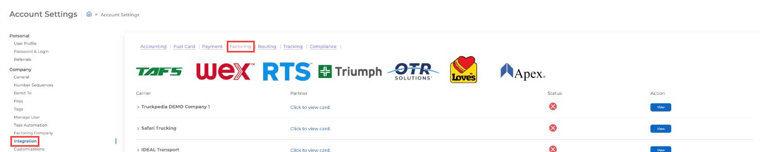
- Click the gear icon at the bottom left, then select Integration under Company and open the Factoring tab.
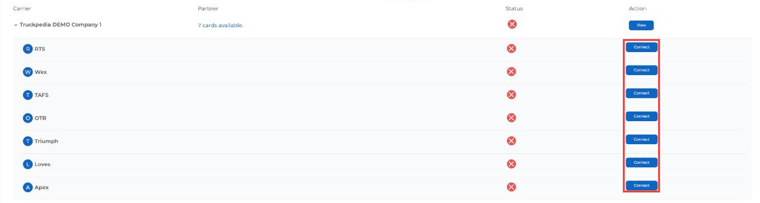
- Expand your company row and click Connect next to your factoring partner.
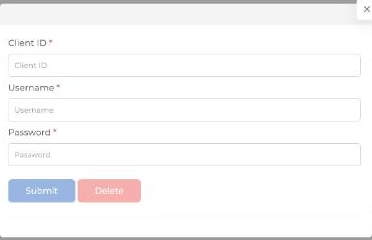
- Enter the credentials your factoring company gave you. Some partners also need a Client ID. If so, ask your factoring company’s account rep for it.
- Click Submit. Once connected, the status shows a green checkmark.
Create the Factoring Company Profile
This tells Truckpedia where to send your invoices and payment requests.
- Go to Settings → Factoring Company.
- Click + Create a Factoring Company.
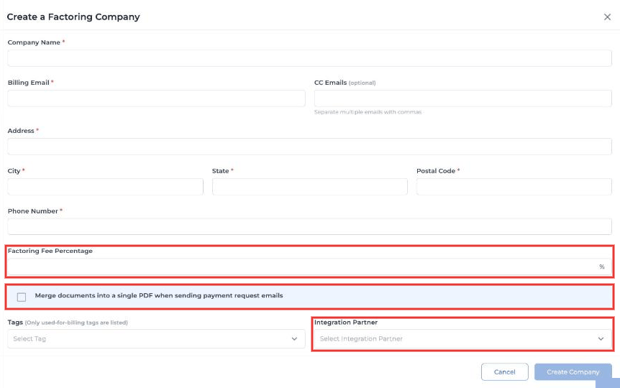
- Fill in the company name, billing email (and optional CC emails), address and phone number.
- Enter the Factoring Fee Percentage, choose your Integration Partner, and pick any Tags this factoring company should be used for.
- Click Create Company.

2. Factoring by Email (for companies without an integration)
If your factoring company isn’t an integration partner but accepts invoices by email, invoices can go straight to their inbox.
Steps:
- Create the factoring company profile as shown above, using their billing email. Leave Integration Partner blank.
- Check Merge documents into a single PDF when sending payment request emails if your factoring company wants one combined file.
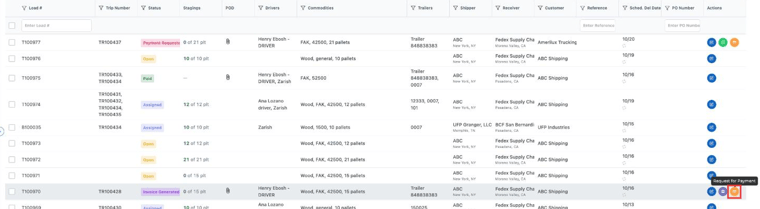
- When you Request for Payment (from the Dispatch load list or from Accounting), the invoice and documents are emailed to your factoring company, not your customer.
3. Manual Document Upload
Who should use this? If your factoring company only takes documents through their own portal, merge the documents in Truckpedia and upload them there.
Steps:
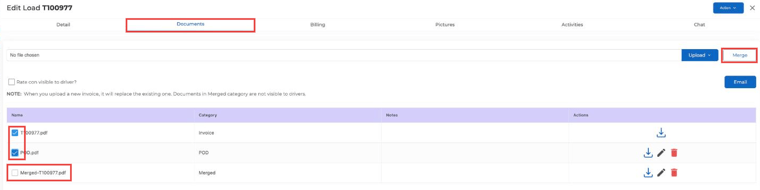
- Once the load is delivered and the driver has uploaded the POD, open the load and go to the Documents tab.
- Check the documents you need (for example the invoice, rate confirmation and POD).
- Click Merge. A new file is added in the Merged category (merged files aren’t visible to drivers).
- Download the merged file and upload it to your factoring company’s portal.
4. Skip Factoring for Specific Customers
If there are customers you don’t want to factor, you can exclude them without changing your overall settings.
Steps:
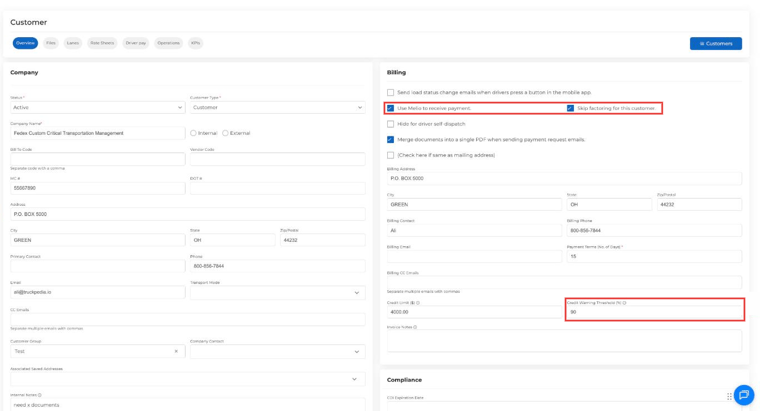
- Go to Customers, find the customer and click Edit.
- In the Billing section, check Skip factoring for this customer and save.
- When you request payment for that customer, it goes directly to the customer’s billing email instead of your factoring company.
For any further assistance, contact our support team at help@truckpedia.io.