
📽️How to Sync Driver Pay to QuickBooks Online📽️
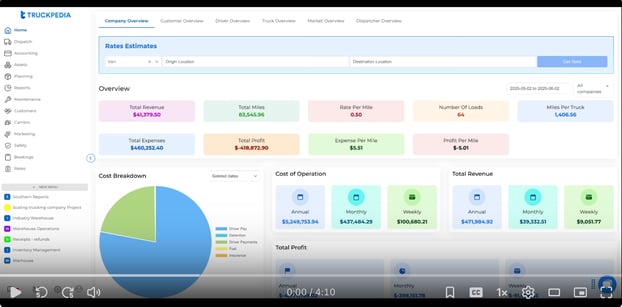
Step 1: Navigate to Settings
Click the gear icon at the bottom left of the menu, then select Integration under Company.
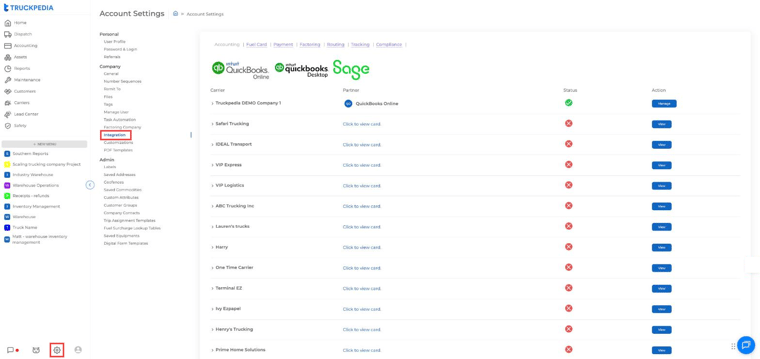
Step 2: Open the Accounting integrations
The Accounting tab opens by default. Expand your company row and click Manage next to QuickBooks Online.
Note: If you’re setting this up for the first time, you won’t see a green checkmark yet.
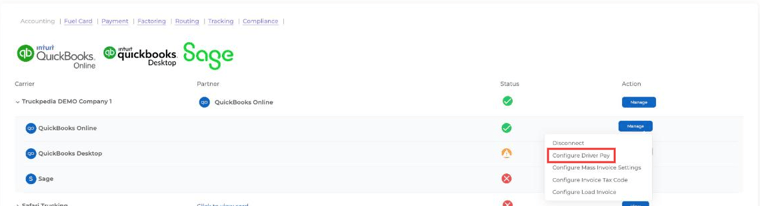
Step 3: Click “Configure Driver Pay”
This opens the settings for how Truckpedia syncs driver settlements to QBO. (The same menu also has options for mass invoices, invoice tax codes and load invoices. Avoid Disconnect unless you mean to remove the connection.)
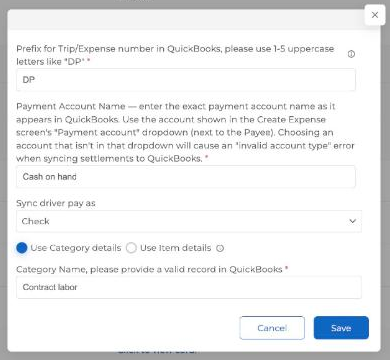
Driver Pay Configuration Fields
Prefix for Trip/Expense Number
Set an identifier of 1–5 uppercase letters (e.g., DP) to track which transactions in QBO come from Truckpedia’s driver pay.
Payment Account Name
Type the exact name of the payment account in QuickBooks you want driver pay to come from (for example, Cash on hand or Checking).
Important: use an account that appears in the Payment account dropdown on QuickBooks’ Create Expense screen (next to the Payee). Choosing an account that isn’t in that dropdown causes an “invalid account type” error when syncing settlements.
Sync Driver Pay As
Select how you want the pay recorded:
- Expense (recommended for electronic payments)
- Check (for physical checks)
Use Category or Item Details
- Select “Use Category details” unless you’ve set up specific items in QBO for driver pay.
- Category is more commonly used for general expense tracking.
Category Name
Enter the expense category you want driver payments filed under, for example Salaries & Wages or Contract labor.
This name must match the category in QuickBooks exactly.
Click Save once your setup is complete.
Sync Driver Settlements
Where you sync depends on which driver pay version your account uses:
- Driver Pay V3: go to Accounting → Driver Pay Manager → Settlements.
- Driver Pay V1: go to Accounting → Driver Pay Manager → Driver Pay Settlements.
- Find the settlement you want to sync.
- In the Actions column, click the green cloud icon (Sync to QuickBooks Online).
Driver Pay V3 (Settlements tab):

Driver Pay V1 (Driver Pay Settlements tab):
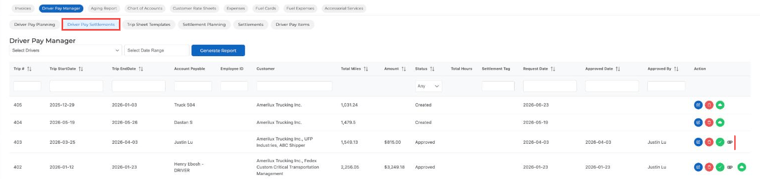
Once synced, the record will appear in your QBO account under the category you configured.
How To Verify in QuickBooks
To confirm that everything transferred correctly:
- Log in to QBO.
- Go to Expenses and look for your selected category (e.g., Salaries & Wages).
- The driver pay amount should now appear as a logged transaction.
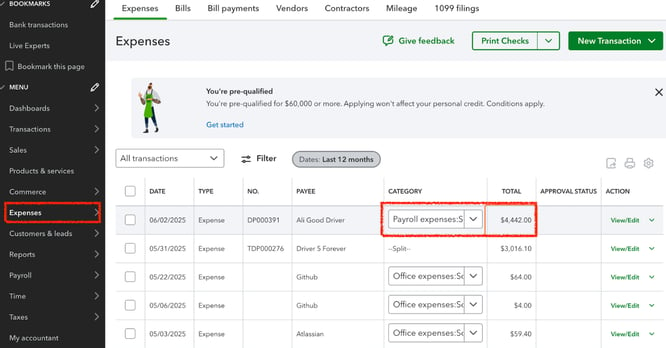
This setup makes sure your driver settlements are logged in QBO with no double entry.
For any further assistance, contact our support team at help@truckpedia.io.