
Digital forms let drivers and warehouse workers fill out paperwork, like a BOL, POD, release form or wash ticket, right on the Truckpedia Driver App. With the latest update, form templates can email the finished form automatically, show legal terms, collect signatures, and fill in load details for you.
New to digital forms? Start with How to Create a Digital Form Template.
Open your form templates
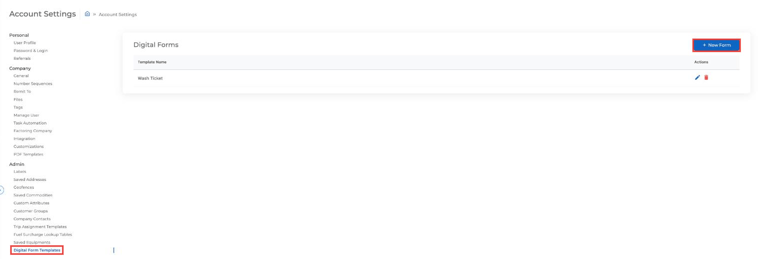
Click the gear icon at the bottom left and go to Admin → Digital Form Templates. Click + New Form to create a template, or the pencil icon to edit one.
What's new on templates
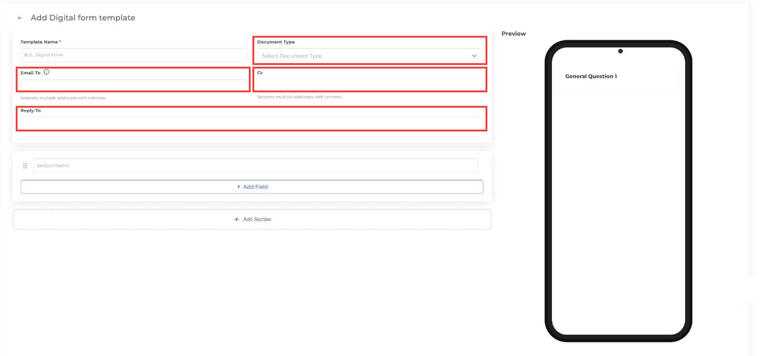
Document type
Choose what the form is: BOL, POD, Lumper, Release Form or Others. This labels the completed form as the right kind of document.
Default email routing
Set who gets a copy of every completed form:
- Email To and Cc: separate multiple addresses with commas.
- Reply-To: where replies go.
An email is only sent if there's at least one recipient in Email To, Cc or an Email (warehouse) field on the form.
New field types
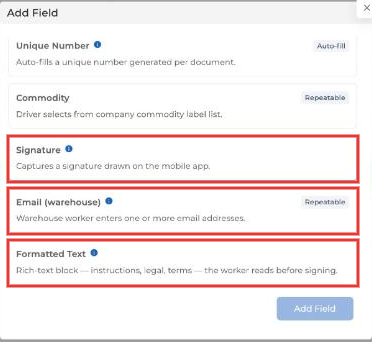
Click + Add Field in a section to pick a field. Along with text and number inputs, you can now add:
- Signature: captures a signature drawn on the phone, for example from a warehouse worker.
- Email (warehouse): the warehouse worker enters one or more email addresses to get a copy.
- Formatted Text: a rich-text block for instructions, legal clauses or terms the worker reads before signing.
- Auto-fill fields: Truck, Trailer, Stop, Shippers, Receivers, Load Number, BOL Number and a Unique Number generated for each document.
- Commodity: the driver picks from your company's commodity list.
As you build the form, the phone preview on the right shows exactly what the driver will see. Click Save when you're done.
How drivers fill out forms
- In the Driver App, open the assigned load.
- Tap the camera icon and choose Digital Forms.
- Pick the form, fill it out, have the warehouse worker sign if needed, and tap Submit.
The completed form is saved to the load in Truckpedia and emailed to the recipients you set up.
Questions? Email help@truckpedia.io.