
🎥 Watch the video on how to use the Calendar View
The Calendar View shows your unassigned loads next to a calendar of your drivers, so you can see who's free and assign loads by dragging them onto a driver.
Create a Calendar View
- Go to Dispatch.
- Click Views at the top.
- Under Create New View, click New Calendar View.
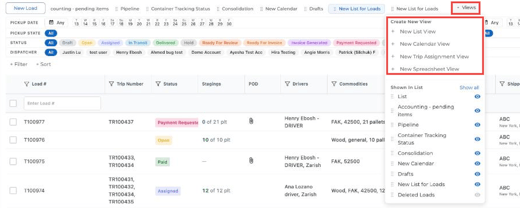
Your calendar opens as a new tab at the top of Dispatch. You can rename it with the pencil icon in the Views menu.
What you'll see
- Unassigned Loads on the left, grouped by date.
- Your drivers down the side, with a column for each day.
- The date range at the top right. Click it to pick which days to show.
- Tabs for Dispatch, Pre-Planning and Trip Assignment along the top.
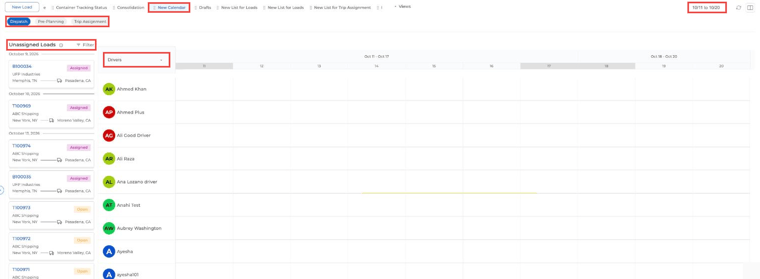
Assign loads to drivers
Drag a load from Unassigned Loads onto a driver on the right date. The load is assigned and shows up in the driver's app.
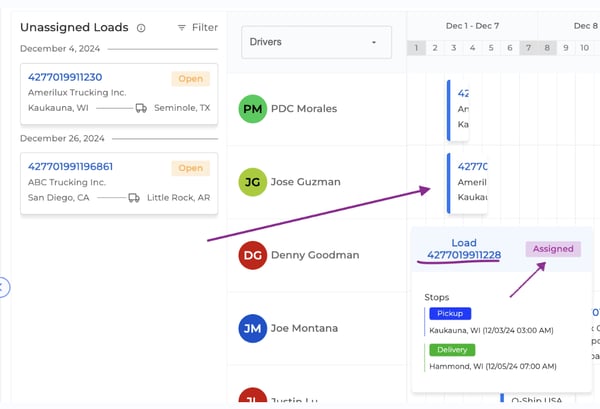
Show only certain drivers
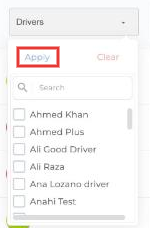
If different dispatchers handle different drivers, click the Drivers box above the calendar, check the drivers you want and click Apply. Click Clear to show everyone again.
Filter unassigned loads
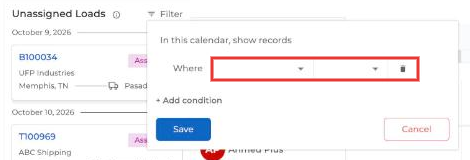
Click Filter next to Unassigned Loads, then + Add condition. You can filter by:
- Direction: show only inbound or outbound loads. Handy when you have lots of unassigned loads.
- Pickup Date or Delivery Date: show loads in a date range.
Click Save to apply the filter.
Once you've filtered, assign loads the same way: drag them onto the right driver.
Want to assign individual stops to different drivers? See How to dispatch using the Calendar View in Truckpedia v3.
Questions? Email help@truckpedia.io.