
Use Consolidation when a load doesn't go straight from the shipper to the receiver. The first driver drops the freight at your yard, and a second driver picks up the trailer later and makes the final deliveries. This is common for LTL, cross-border and multi-step moves where different drivers handle different parts of the same load.
Watch the videos
- Video: How to Use the Consolidation Feature in Truckpedia (English)
- Video: How to Use the Consolidation Feature in Truckpedia (Spanish)
With Consolidation you can:
- See every trailer that's been dropped at your yards.
- See what freight is still inside each trailer.
- Send a second driver to pick up a full or partly full trailer.
- Build the second driver's trip automatically from all the loads in that trailer.
Before you start
Save your yard or warehouse as a saved address first. See How to Save Addresses Inside Truckpedia.
Step 1: Open the load
Go to Dispatch and create a new load or open an existing one. In Step 4: Assign Driver & Equipment you'll see the trip. By default it has two stops from the customer's order: the shipper and the receiver.
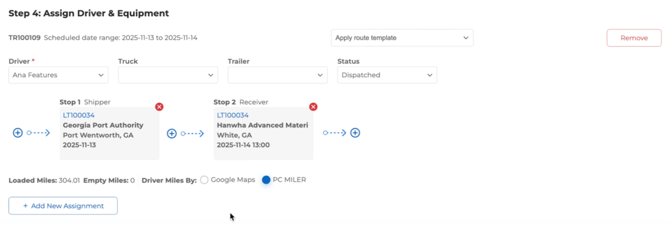
To have the driver stop at your yard instead of going to the receiver, change the route as shown below.
Step 2: Send the first driver to your yard
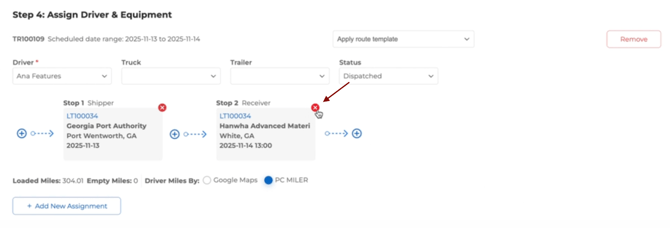
- Remove the receiver from the trip by clicking the small red x on its stop.
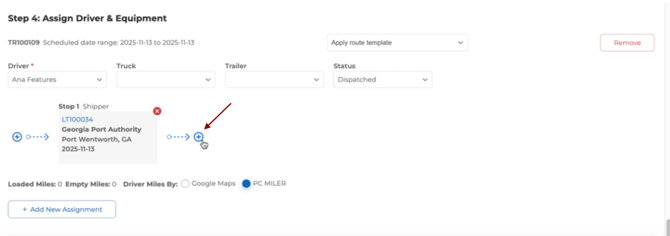
- Click Add Stop.
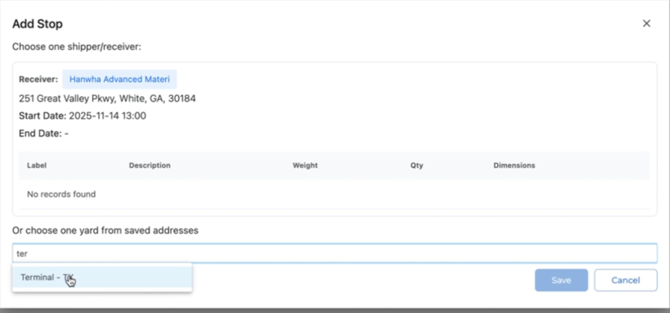
- Choose Saved Address and pick your yard or warehouse.
- Assign the first driver to take the load from the shipper to the yard, then click Submit.
Step 3: Dispatch the first driver
Dispatch the load.
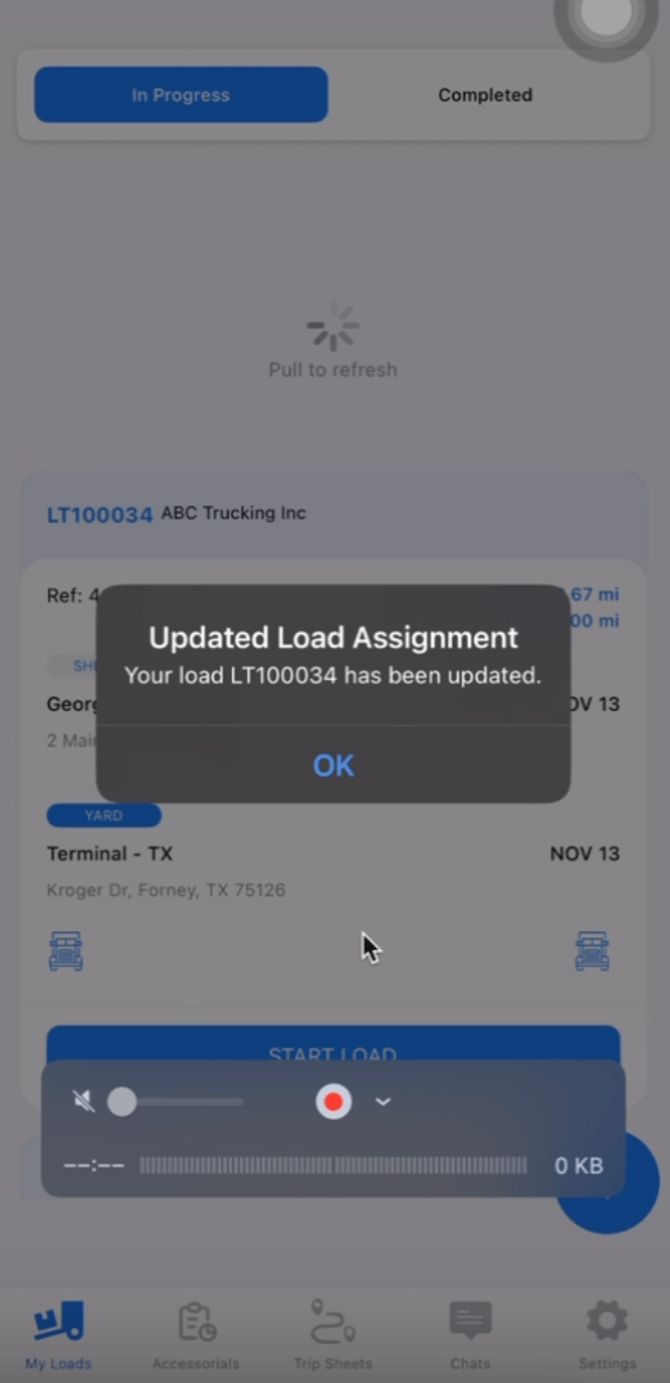
In the driver app, the driver sees the shipper as the first stop and your yard as the second.
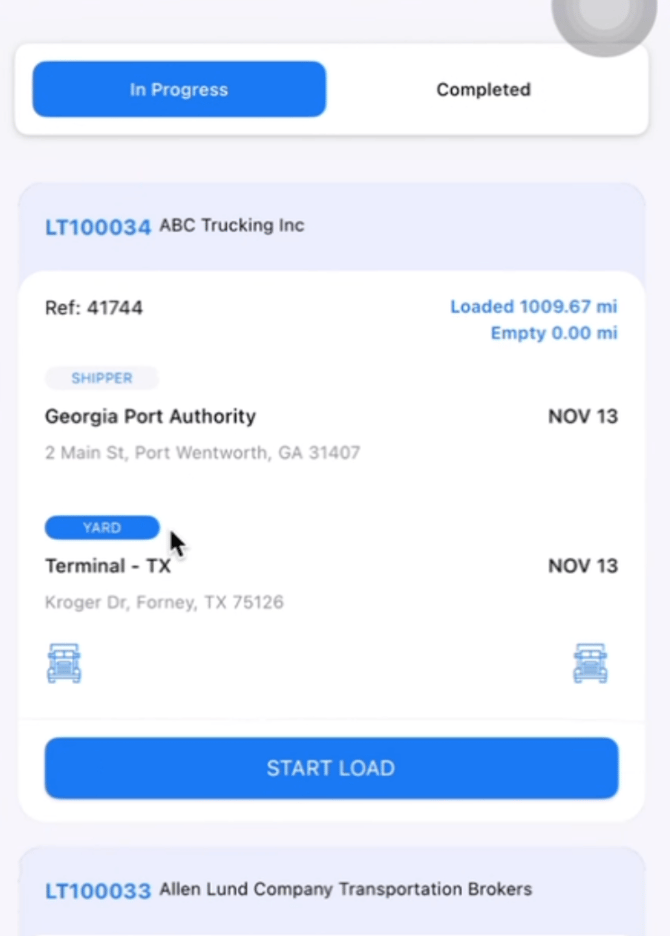
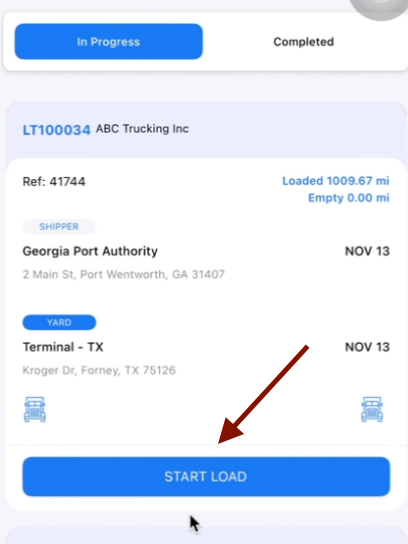
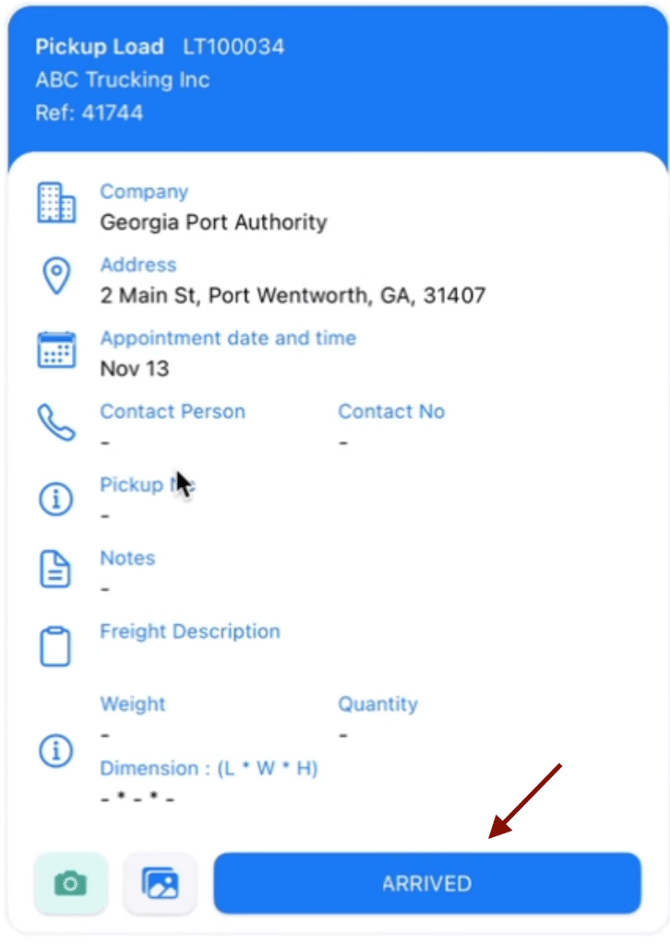
The driver starts the trip and taps Arrived at the shipper,
Loaded once the freight is on,
and then drives to the yard.
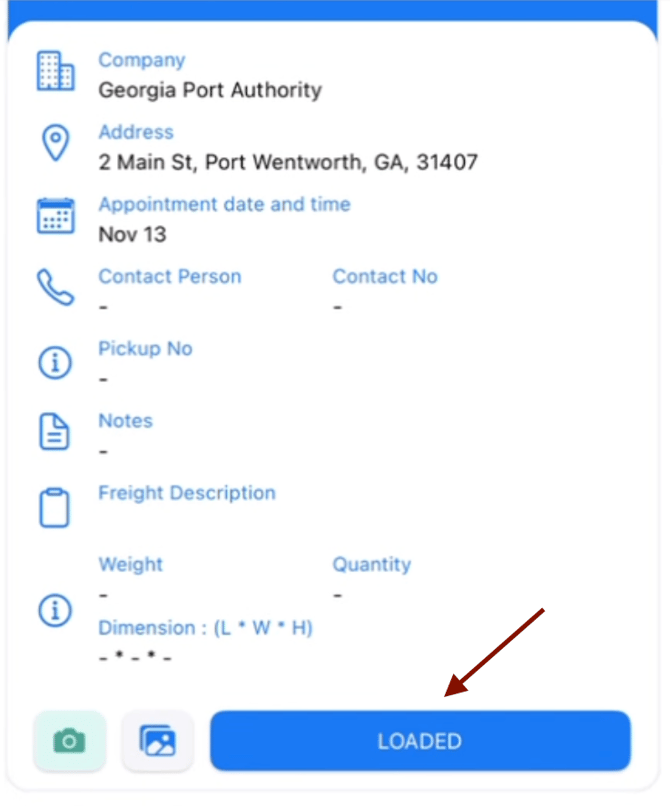
At the yard, the driver sees Transfer Commodity instead of Arrived and Unloaded.
Step 4: Add commodity details (recommended)
If the driver is carrying more than one commodity or freight for more than one delivery, add the details so the driver knows exactly what to transfer.
- Open the load and add the commodities, for example pallets or pieces.
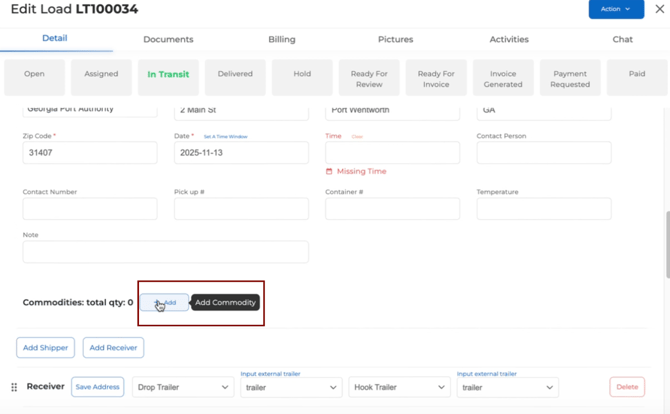
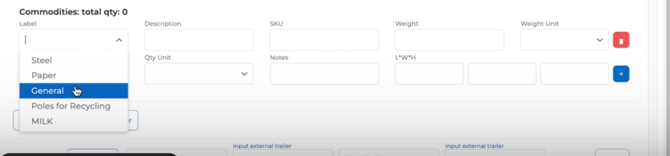
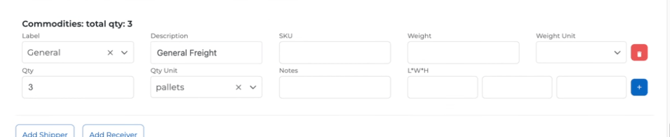
- Scroll down to the receiver. Truckpedia adds the commodity there for you.
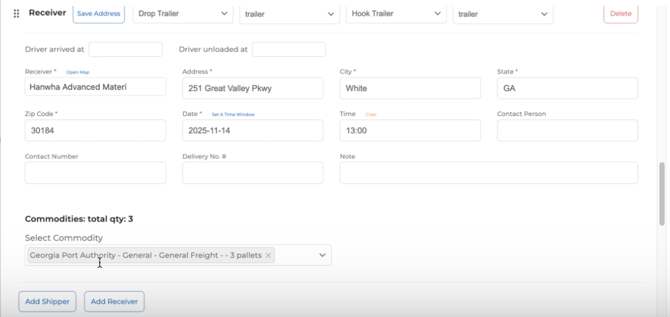
- Save your changes so they show up in the driver app.
Step 5: The driver transfers the freight at the yard
In the driver app:
- Tap Transfer Commodity.
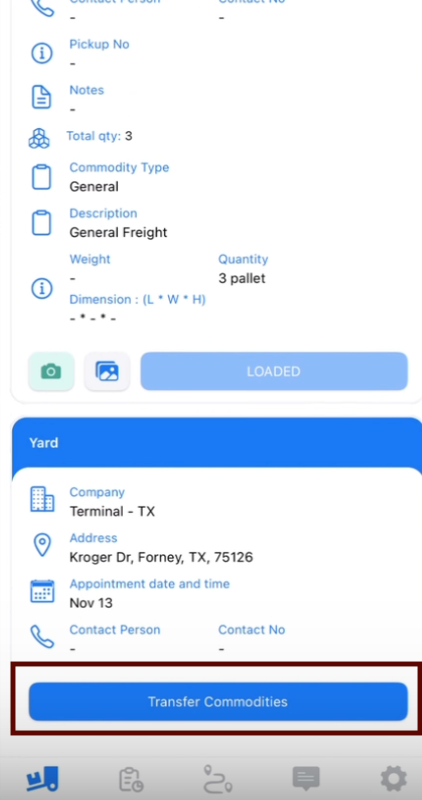
- Select the commodity being dropped.
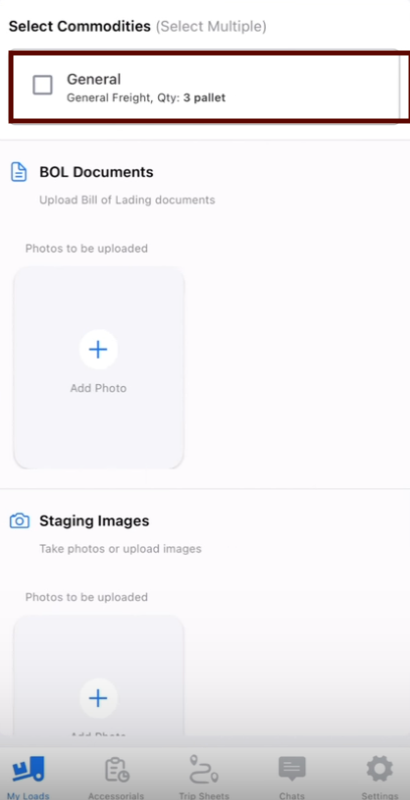
- Select the trailer (or yard) it's going into.
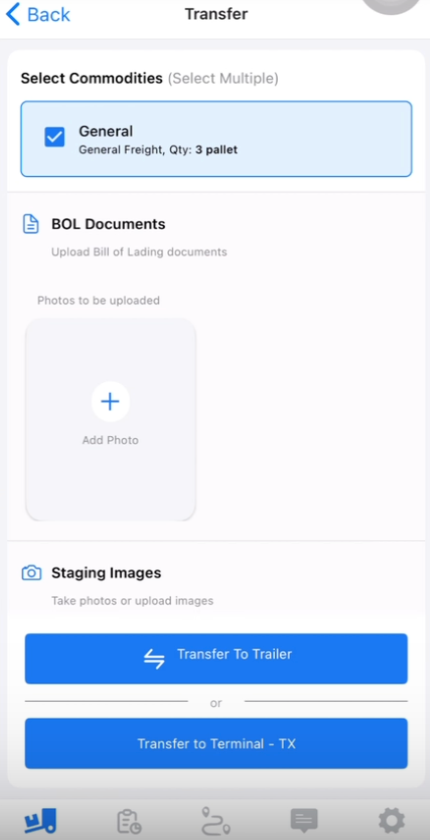
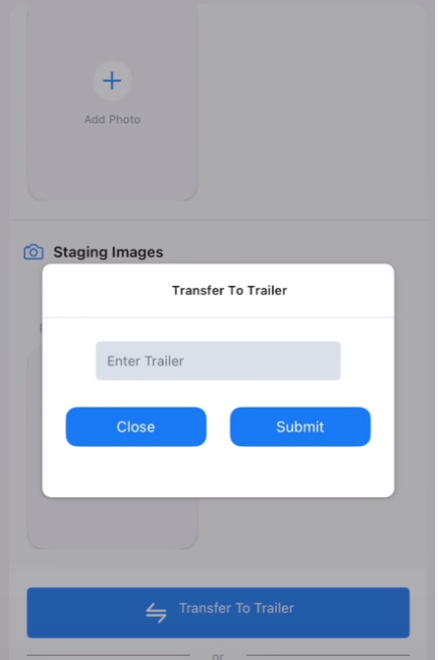
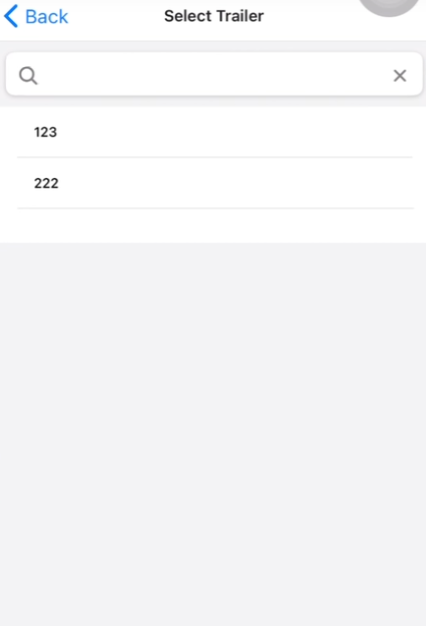
- Enter how full the trailer is, then tap Submit.
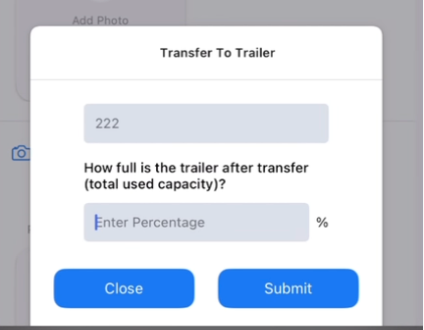
The freight now shows up in that trailer in Consolidation.
Step 6: Check your trailers in Consolidation
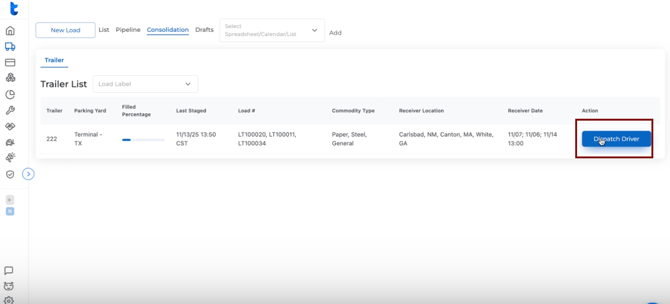
Back in the dashboard, go to Dispatch and open the Consolidation view. For each trailer you'll see:
- Which yard it's dropped at
- All the freight inside it, from one load or several
- The drivers who dropped freight into it
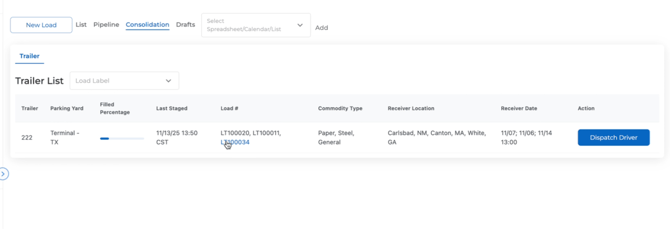
Use this view to decide when a trailer is ready to move.
Step 7: Send a second driver to pick up the trailer
When the trailer has enough freight:
- In Consolidation, open the trailer and click Dispatch Driver.
- Select the second driver.
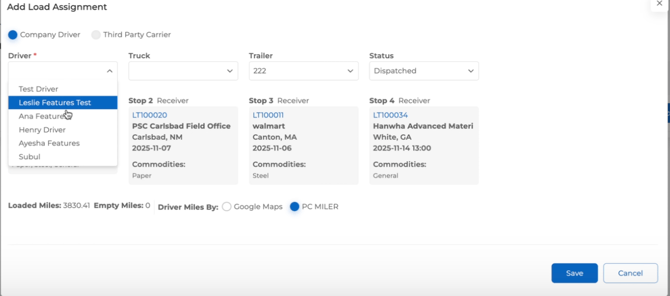
- Truckpedia builds the trip for you: pick up the trailer at the yard, then deliver each load to its original receiver.
- Pick the dates and dispatch.
The second driver gets one trip with every receiver for all the loads in that trailer.
Step 8: The second driver makes the deliveries
In the driver app, the second driver sees the yard pickup followed by every receiver stop, and loads and unloads at each one as usual. Once the last delivery is done, the consolidation is complete.
Summary
- Route the first driver to your yard instead of the receiver.
- The driver uses Transfer Commodity to drop the freight into a trailer at the yard.
- Freight from several loads can go into the same trailer.
- Track everything in the Consolidation view in Dispatch.
- Send a second driver to pick up the trailer and deliver to all the receivers in one trip.