
Add-on feature. Access must be requested.
Find Trailer Consolidation
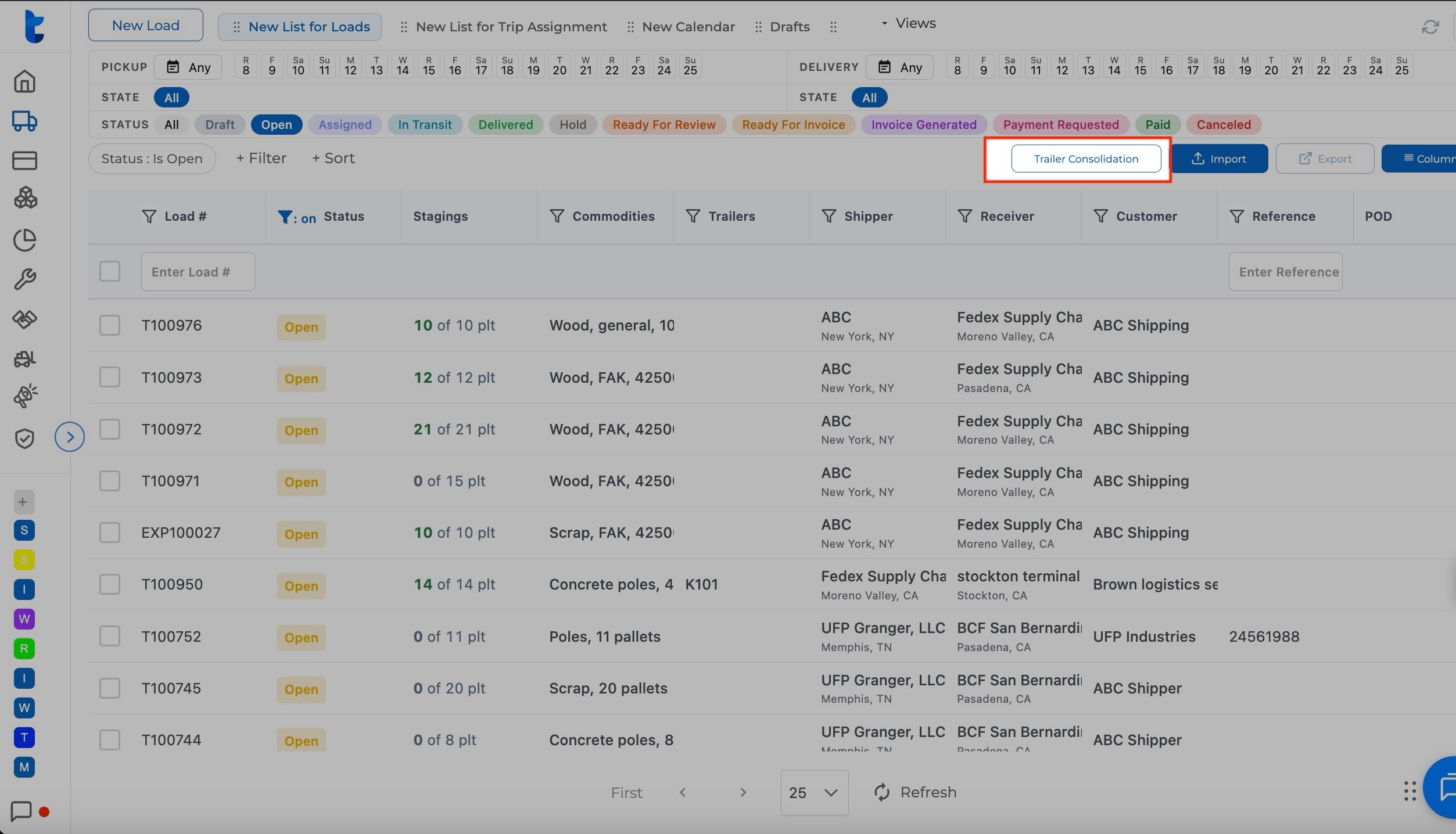
- Go to the Dispatch module and use the New List view for Loads.
- If the New List is not already in your Dispatch dashboard, open the Views menu at the top and select it. Trailer Consolidation only appears in this view.
- (Optional) Add the Staging and Commodities columns to your list. This makes those details easier to see while you consolidate.
- Click Trailer Consolidation. The breakdown of your trailers opens on the right side.
The first time you use it, with no loads consolidated yet, the trailer view is empty.
Trailer Capacity
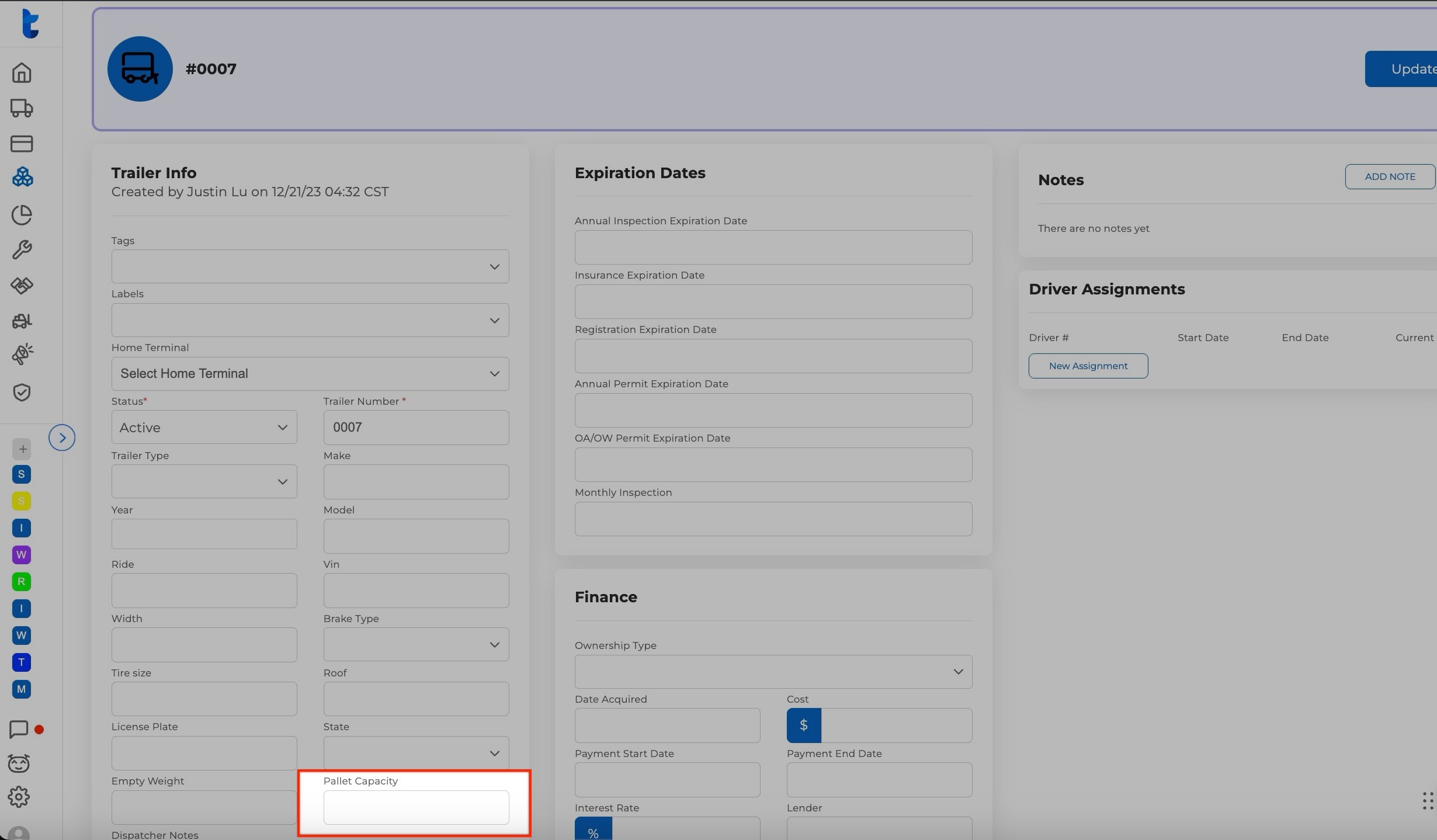
The system sets each trailer to a default capacity of 30 pallets. To use a different capacity, change it in the trailer profile.
.
Navigate and Search
Everything in the consolidation view is hyperlinked:
- Click a trailer number to open the trailer profile.
- Click a load number to open the load.
The Trailer Consolidation tab has two search bars:
- Trailer search: find a trailer by its trailer number and bring it to your view.
- General search: find items by load number, trip number, yard, or commodity type.
Assign Pallets to a Trailer
- Find the load on the left side of the view.
- Drag the load to the trailer on the right side.
- Repeat for any other loads you want on that trailer.
- Click Save to apply your assignments, or Cancel to discard them.
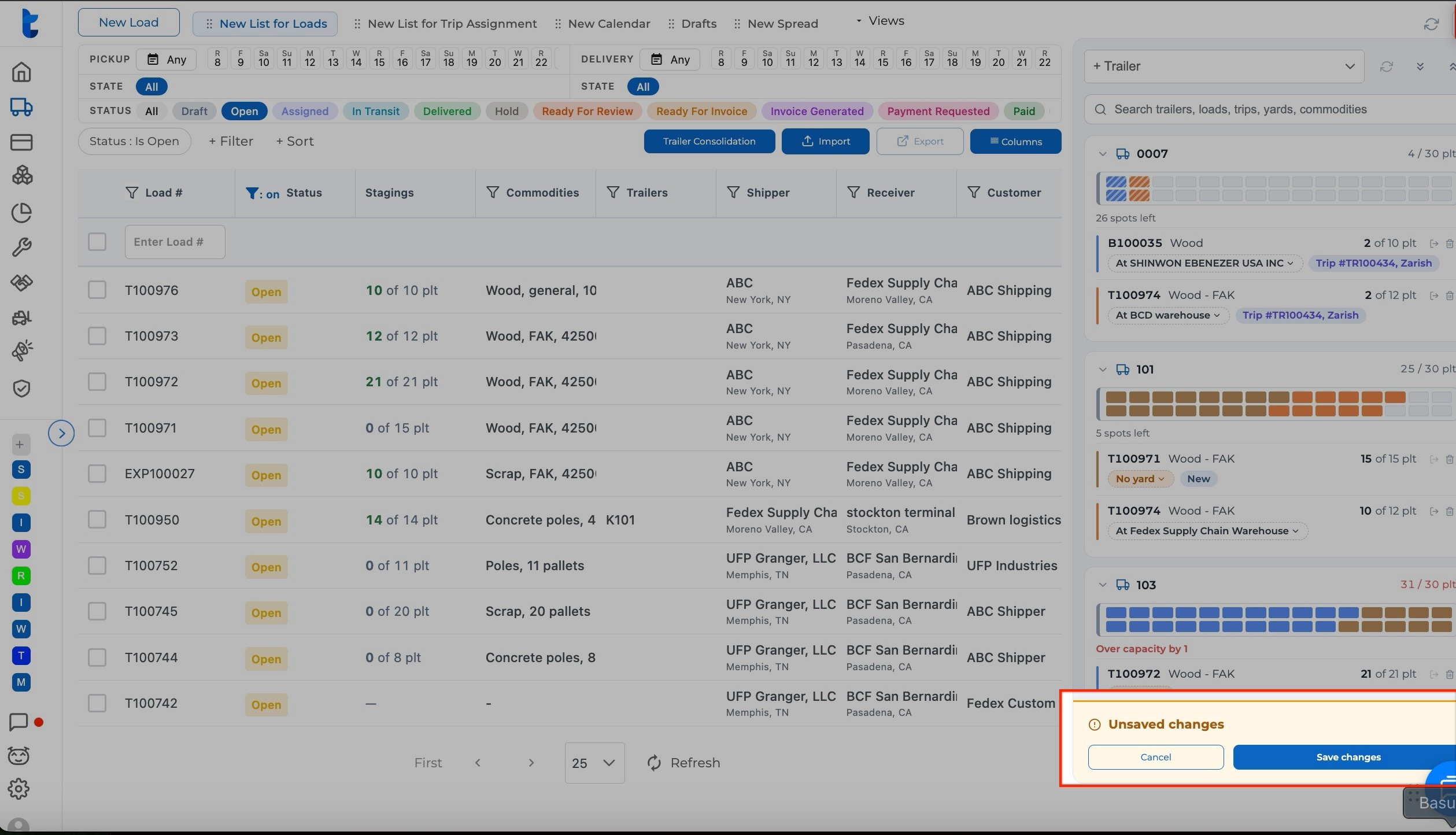
The system does not apply the commodities to the trailer until you click Save. Anything you do before that is pre-planning. Truckpedia also does not allow the same commodities to be assigned twice to different trailers, so you cannot double-assign freight by accident.
Create a Trip
Once you are sure about your assignment and have clicked Save Changes, you can create a trip from the trailer. This option is not offered if the trailer has already been assigned.
- Click Create a Trip (trip assignment). Your regular trip assignment view opens.
- Assign a driver and a truck.
- Add stops if needed. You can add stops that are not part of the load, such as internal addresses, yards, and warehouses, or stops from other loads.
- Dispatch the trip to the driver.
Yard automation
If the trailer already has a yard assigned (set in the load or the trailer beforehand), the system automatically adds the yard to the trip, because it knows where the trailer and its freight are located. If no yard is assigned, no yard stop will be suggested.
Remove Commodities from a Trailer
Each trailer has an option to remove the commodities currently on it. When you remove them, the pallets return to their load and are marked as not yet assigned to a trailer, so you can place them on another trailer.
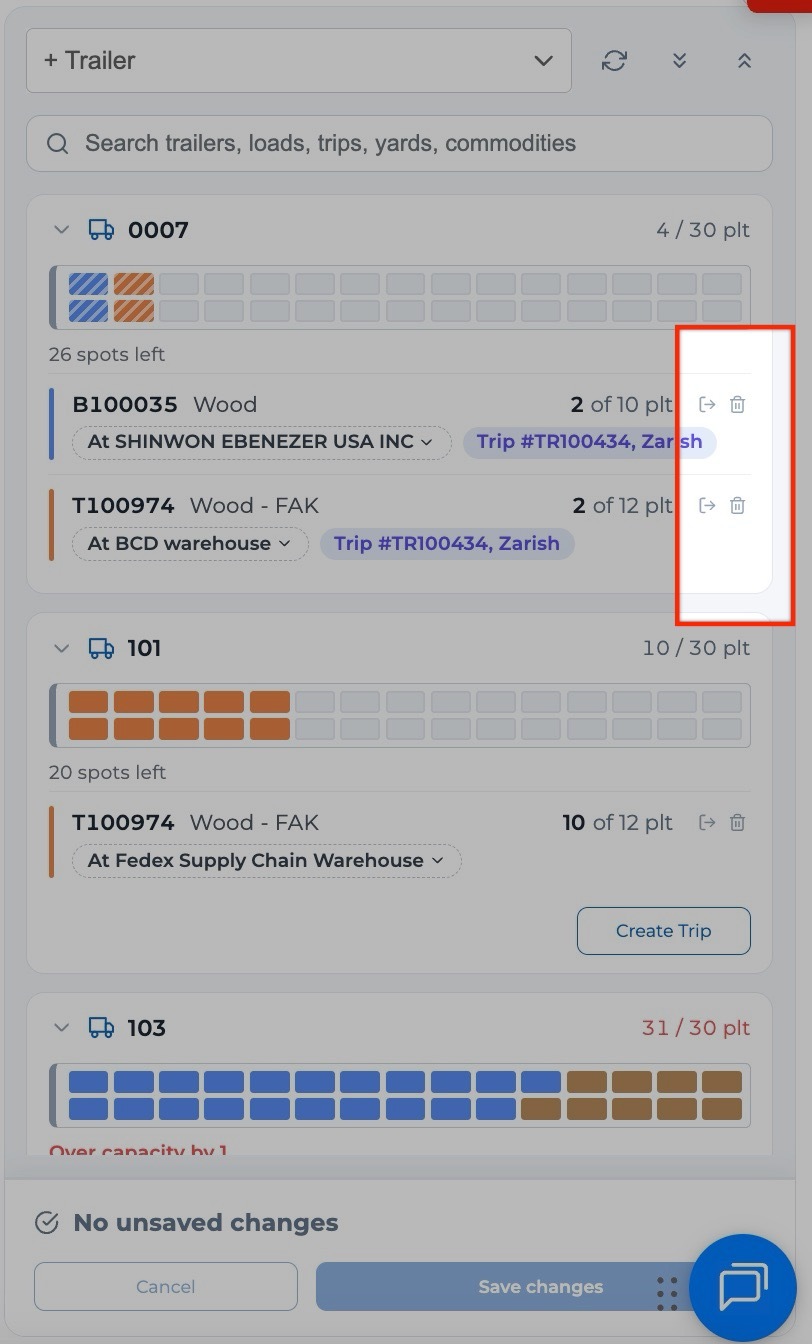
You will see two different looks for commodities:
- Normal appearance: commodities that are still being pre-planned or are sitting at a yard.
- Blurred appearance: commodities that have already been dispatched to a driver and are in transit.
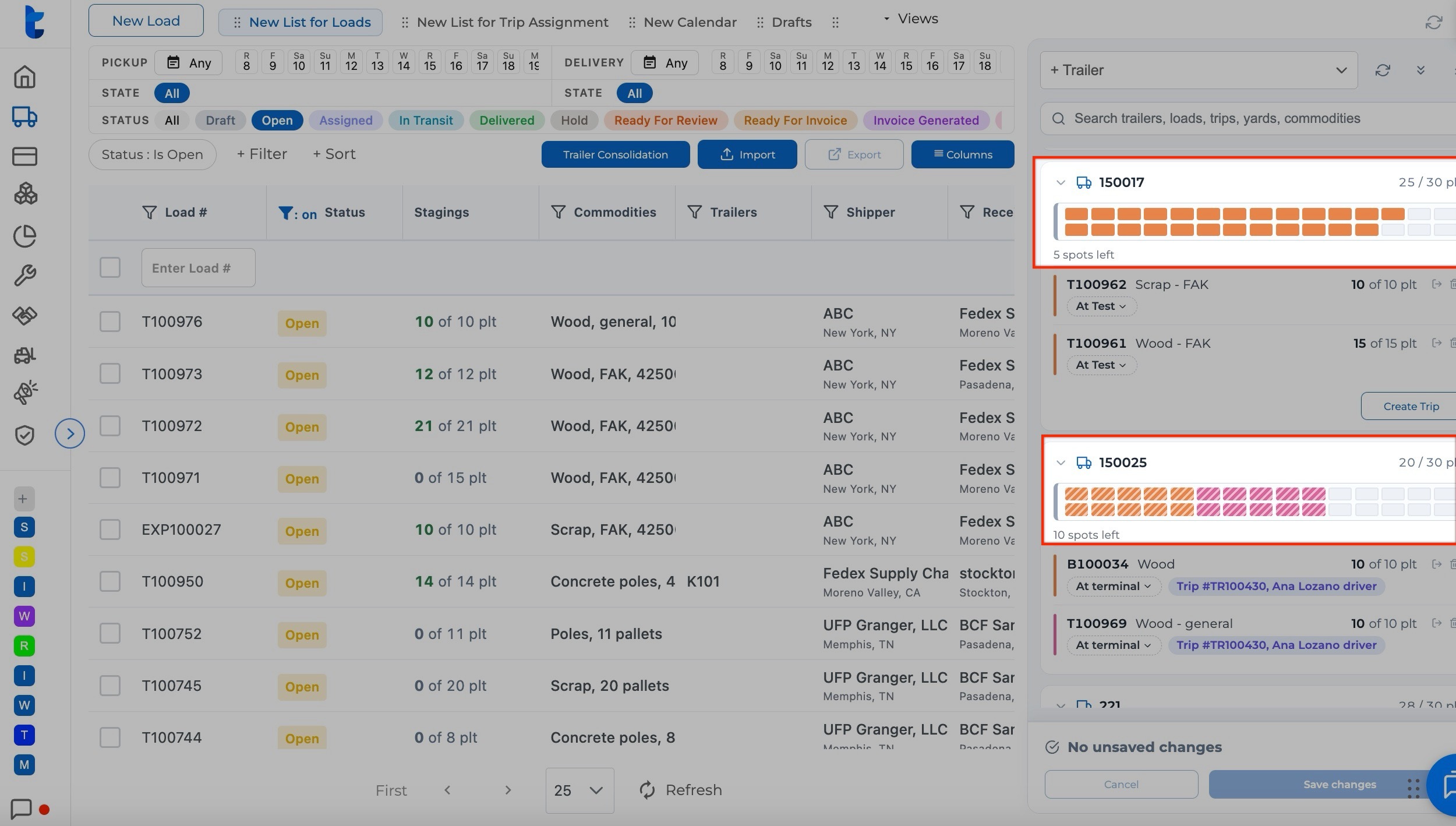
Blurred commodities cannot be changed in the same way. Removing them requires dispatcher access, so a blurred item is a quick signal that the freight is already on the road.
Need Help?
If you do not see Trailer Consolidation in your New List view, your account may not have the add-on yet. Contact your account representative or Support to request access. If you have questions about setting it up for your operation, our team is happy to help.