
Load charges (v2) no longer change on their own. Editing a load's dates, miles, weight or stops will not quietly reprice it. Charges only change when you click Calculate Payments or pick a different customer rate sheet, and Truckpedia shows you exactly what changed before you save.
What's new
- Calculate Payments button to reprice the load from its customer rate sheet whenever you're ready.
- Status and Source columns on every charge row.
- Rate sheet changes only touch rate sheet rows. Charges you typed in, or that came from EDI or a PDF rate con, stay put.
- A short note under each row that was added or changed.
- A Removed charges table that shows what will be deleted when you save.
Step 1: Open the load's charges
Open the load from Dispatch and scroll to Step 3: Load Charge. Make sure v2 is selected next to Charges.
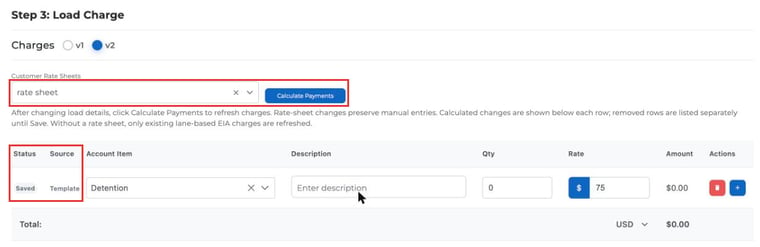
Choose the customer's rate sheet in Customer Rate Sheets. Each charge row now shows:
- Status: Saved (already saved on the load), New (added but not saved yet) or Changed.
- Source: Template if the row came from the customer rate sheet, or Manual for everything else (typed in, EDI, PDF rate con or customer lane).
Step 2: Add your own charges
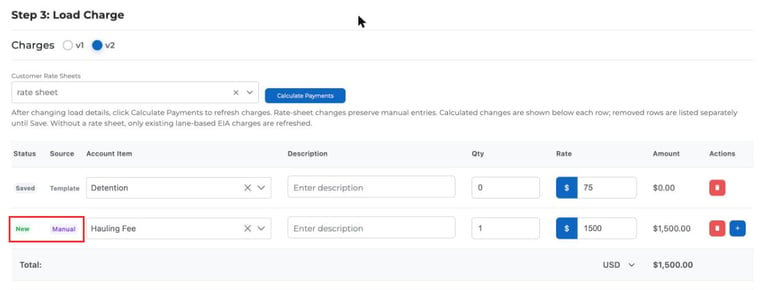
Click the + button to add a row, then choose the Account Item and enter the Qty and Rate. The row is marked New and Manual.
Step 3: Change the rate sheet without losing manual charges
When you select, switch or clear the rate sheet, only the Template rows are updated. Your Manual rows are not touched.
- Rows added by the new rate sheet show "Added by calculation — not saved yet."
- Saved rate sheet rows that no longer apply move to the Removed charges table. They don't count toward the total and are deleted only when you click Save.
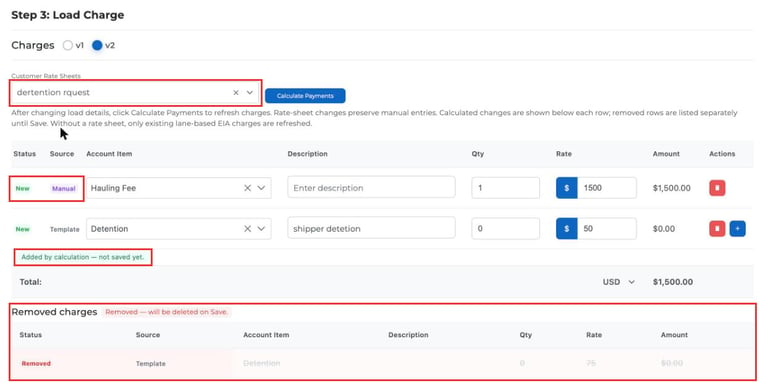
Tip for EDI and PDF loads: charges that came in from EDI or a PDF rate con count as Manual. You can apply a customer rate sheet to add accessorials like detention without wiping out the imported charges.
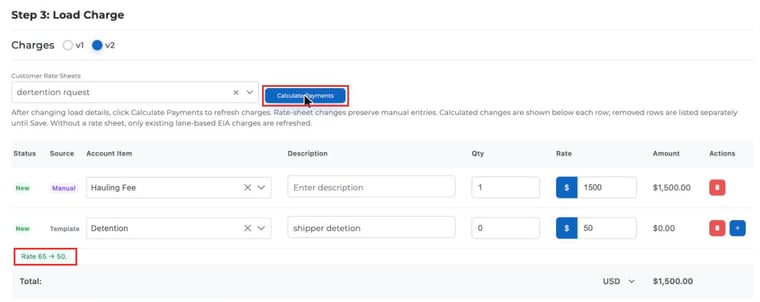
Step 4: Click Calculate Payments after you change the load
If you change load details such as dates, miles, weight or stops, click Calculate Payments to reprice the rate sheet rows. Any row that changes shows a note underneath, for example "Rate 65 → 50."
Step 5: Review and save
Check the notes and the Removed charges table, then click Save or Save & Close. Nothing is changed on the load until you save. If you close the load without saving, the charges stay as they were.
Good to know: Without a rate sheet selected, Calculate Payments only refreshes existing lane-based fuel surcharge (EIA) charges. For automatic pricing, we recommend setting up a customer rate sheet instead of using customer lanes.