
When you broker a load, you can track what you owe the carrier and mark it paid once you've paid them.
Step 1: Open Third Party invoices
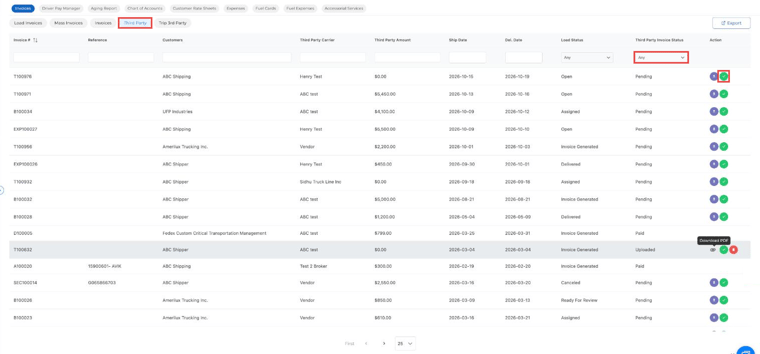
Go to Accounting → Invoices → Third Party. Each brokered load shows the customer, the third-party carrier, the amount you owe them, the dates, the load status and the Third Party Invoice Status (for example Pending, Uploaded or Paid).
Use the boxes above each column to search by load number, carrier or amount, or filter by status.
Step 2: Upload the carrier's invoice (optional)
Click the purple Upload Invoice icon to attach the invoice the carrier sent you. The status changes to Uploaded, and you can download it later with the paperclip icon. See How to Upload and Track Third-Party Carrier Invoices.
Step 3: Mark it as paid
Once you've paid the carrier, click the green Mark as Paid icon. The status changes to Paid, so everyone can see the carrier has been paid for that load.
Questions? Email help@truckpedia.io.