
Driver Pay V1. This guide covers Driver Pay V1, which uses the Driver Pay Planning and Driver Pay Settlements tabs. If your account uses Driver Pay V3 (Settlement Planning and Settlements), see How to Create Driver Pay Settlements – V3.
📽️ Watch the step-by-step video
What this feature does
- Pays a driver under one tag company (for example, a subsidiary or an owner operator's company)
- Shows that tag company as the payer on the driver's pay statement
- Keeps payroll tags separate from the tags you use to manage loads
Step 1: Create a tag company
If you don't have your tag companies yet:
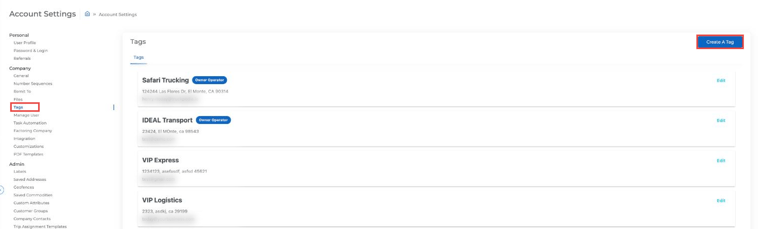
- Click the gear icon at the bottom left to open Settings, then go to Company → Tags.
- Click Create A Tag.
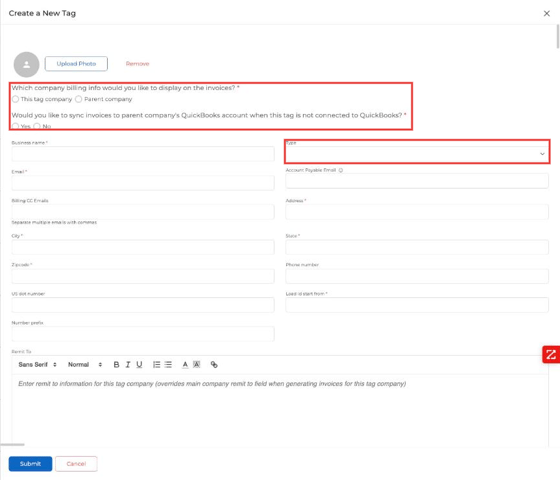
- Choose whose billing info shows on invoices (this tag company or the parent company) and whether to sync to the parent company's QuickBooks.
- Enter the business name, email, address and other details. Under Type, choose Subsidiary, Terminal or Owner Operator.
- Click Submit.
Tip: You can create as many tag companies as you need. Each one stands for a legal entity or division you want to pay under.
Step 2: Set the driver's payroll tag
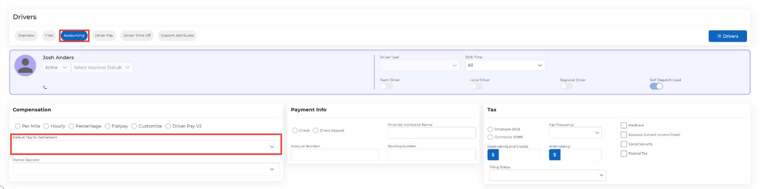
- Go to Assets → Drivers and open the driver.
- Click the Accounting tab.
- Under Compensation, pick how the driver is paid, then choose the tag company in Default Tag for Settlement. A driver can only have one payroll tag.
- Save your changes.
Step 3: Assign loads as usual
Create and dispatch loads to the driver the way you normally do. The payroll tag doesn't change anything in dispatch.
Step 4: Process driver pay
- Go to Accounting → Driver Pay Manager → Driver Pay Planning.
- Find the driver's loads, select them and click End trip.
- In Driver Pay Settlements, open the settlement, make any changes to pay items and click Approve.
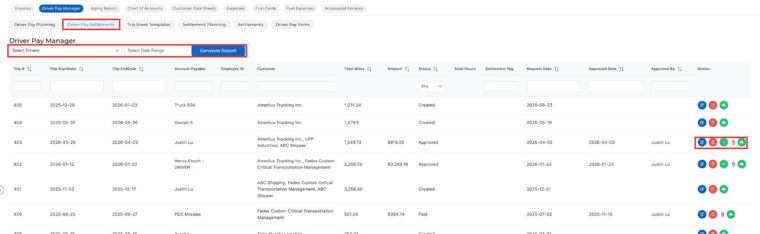
The Settlement Tag column shows which tag company each settlement is paid under.
Step 5: View the pay statement
After approval, click the Invoice (paperclip) icon. The pay statement shows:
- The tag company as the payer
- The driver as the payee
- All the usual load and pay details
Changing a driver's tag company
Open the driver, go to the Accounting tab, pick a different tag in Default Tag for Settlement and save. The change applies to future settlements, not past ones.
Reminders
- The Tag field on the driver's Overview tab is for load management. It doesn't affect pay.
- The payroll tag is set in the driver's Accounting tab.
- Each driver can have only one payroll tag at a time.
Questions? Email help@truckpedia.io for help with payroll tags and pay templates.