
The Charge Breakdown column shows every line from a load's Load Charge (Step 3) right in your spreadsheet view, like "Hauling Fee $1,700.00, Fuel Surcharge $200.00, Detention $150.00". Hover over it to see the full detail, and export it to Excel to build rate and cost reports.
Step 1: Add the Charge Breakdown column
- Go to Dispatch and open a spreadsheet view. Need one? Click Views → New Spreadsheet View.
- Click the + at the end of the column headers.
- Search for Charge, select Charge Breakdown and click Submit.
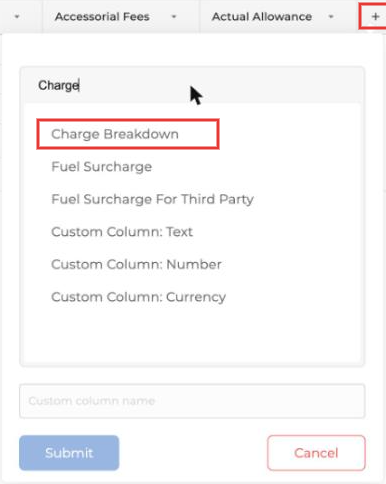
Step 2: Read the breakdown
Each cell lists the load's charges and amounts on one line. Hover over a cell to see a table with each Account Item, Description, Qty, Rate and Amount.
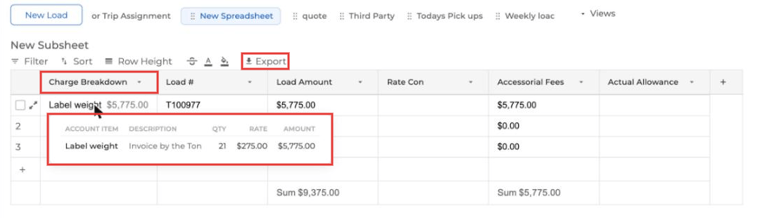
Loads that use the older Load Charge version still show their charges summarized in the cell.
Step 3: Export the charge detail
Click Export in the spreadsheet toolbar. When your sheet includes the Charge Breakdown column, the Excel file gets a second sheet called CHARGE DETAIL:
- One row per charge line, with the load number and customer repeated on each row.
- Columns for Account Item, Description, Qty, Rate and Amount.
- All amounts are in one column, so the total ties out to the Load Amount on the main sheet.
The main sheet exports the same columns as before.
The CHARGE DETAIL sheet includes loads that use Load Charge V2.
How to use it
- Build a pivot table on the CHARGE DETAIL sheet by Account Item to see how much you billed for hauling, fuel surcharge, detention and other charges.
- Combine it with miles or hours columns to work out revenue per mile or per hour.
- Spot loads that are missing a charge, like fuel surcharge, before you invoice.
Related: How to Use Spreadsheets for Load Management and How to Invoice on Load Charge V2.
Questions? Email help@truckpedia.io.