
Truckpedia connects with these fuel card providers: WEX, EFS, Fleet One, Pilot, Multi Service, Comdata, Love’s and Relay.
Step 1: Complete the Data Sharing Form (WEX, EFS or Fleet One)
We’ll email you a Data Sharing Document to send to your WEX, EFS or Fleet One account representative. It gives Truckpedia permission to access your fuel transactions and asks them to add Truckpedia’s server IP address to your account.
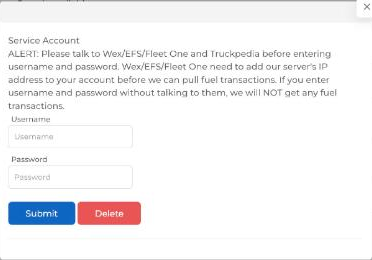
Important: talk to your provider and to Truckpedia before you enter a username and password. If the provider hasn’t added our server IP address yet, we won’t be able to pull any fuel transactions.
Step 2: Watch for Two Emails from WEX
Once the data sharing request is processed, you’ll receive your credentials in two emails (usually within 48 hours):
- Email 1 of 2: your username
- Email 2 of 2: your password
Step 3: Connect Your Fuel Card in Truckpedia
Option A: Connect it yourself
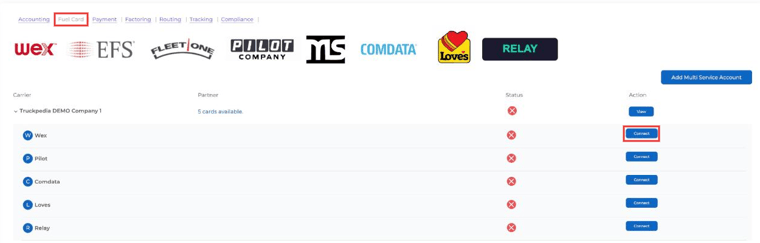
- Click the gear icon at the bottom left, select Integration under Company and open the Fuel Card tab.
- Expand your company row and click Connect next to your provider (for example Wex).
- Enter the username and password from the two emails and click Submit.
Option B: Let us connect it for you
- Forward both emails (username and password) to your Truckpedia contact.
- We’ll enter the credentials and confirm once it’s connected.
Step 4: Wait for Your Data to Sync
Once connected, the provider needs up to 24 business hours to start syncing your fuel data. After that, transactions show up in Accounting → Fuel Expenses → Automated Transactions.

Make sure each fuel card is added under Accounting → Fuel Cards and assigned to a driver, so transactions show the right driver.
Need Help?
If you haven’t received the emails, or you’re unsure how to proceed, reach out to your onboarding specialist or help@truckpedia.io.