
You can now mark which loads need to be tarped, tag tarping photos, and filter your load list to find tarped loads that are still missing tarping photos. This makes it easy to prove a load was tarped and to follow up on drivers before the load is invoiced.
What's new
- A Tarping required checkbox on every load.
- A Tarping flag on load pictures, set from the load in the Truckpedia web system.
- A purpose for every picture: Pickup, Delivery or Other.
- Two new filters in the load list: Tarping Required and Tarping Photos.
Step 1: Mark a load as Tarping required
When you create or edit a load, check Tarping required. You'll find it next to the Step 2: Shipper/Receiver heading. Then save the load.

Step 2: Upload a tarping photo
Note: The Truckpedia mobile app doesn’t have a tarping option when drivers upload photos. Drivers upload their photos as usual, and then your office team marks the right ones as tarping photos inside the load, as shown in Step 3.
- Open the load and go to the Pictures tab.
- Choose your photo, then click the arrow on the Upload button.
- Check Tarping photo if the picture shows the tarp.
- Choose what the picture is for: Pickup, Delivery or Other. The photo uploads with that purpose.
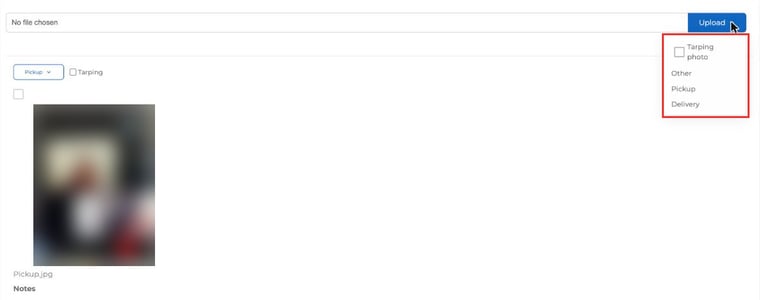
Step 3: Mark a photo as tarping or change its purpose
For photos drivers uploaded from the mobile app, or any photo with the wrong purpose, open the load in Truckpedia and go to the Pictures tab:
- Use the dropdown above the photo to switch it between Other, Pickup and Delivery.
- Check or uncheck Tarping next to it.
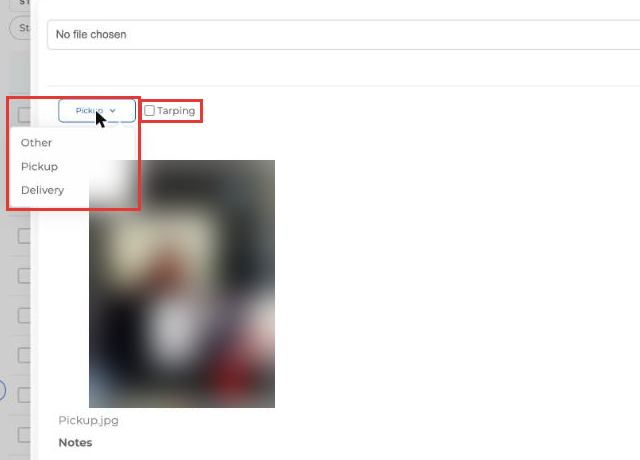
Step 4: Find loads that need tarping or are missing tarping photos
Go to Dispatch and open New List for Loads. Click + Filter and type Tarp. You'll see two new filters.
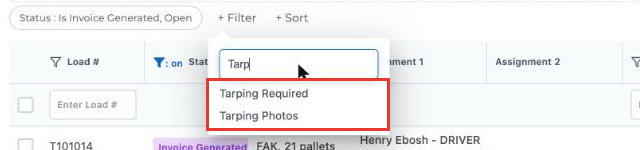
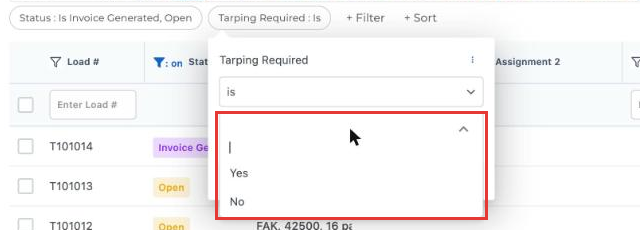
Tarping Required
Choose Yes to see only loads that need tarping, or No to see loads that don't. Then click Save.
Tarping Photos
Choose present to see loads that have a tarping photo, or missing to see loads that don't have one yet. Then click Save.
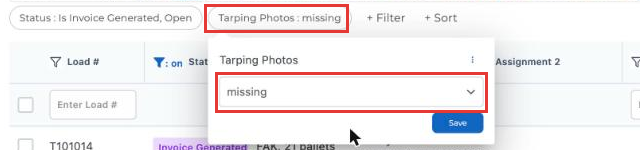
Tip: Use both filters together, Tarping Required: Yes and Tarping Photos: missing, to see every load that needed a tarp but doesn't have a tarping photo yet.
Samsara users
If your drivers submit tarping photos through a Samsara form connected to Truckpedia, those photos can come into Truckpedia automatically as tarping photos on the load. Contact us at support@truckpedia.io if you'd like to set this up.
💬 Need help? Contact us anytime at help@truckpedia.io.