
When you add an expense from a trip's Financials tab, Truckpedia now saves it against that trip. You'll see the trip number next to the expense in Accounting → Expenses, so it's easy to tell which trip each cost belongs to.
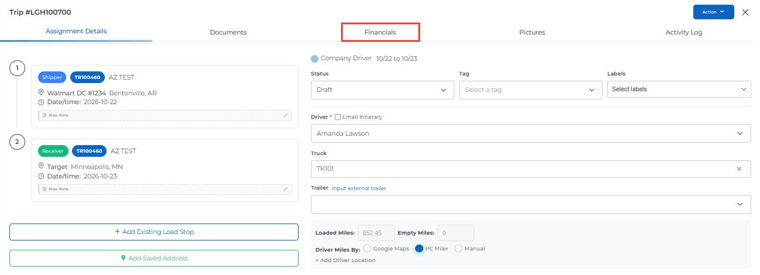
Step 1: Open the trip's Financials tab
Open the trip from Dispatch and click the Financials tab in the trip sidebar.
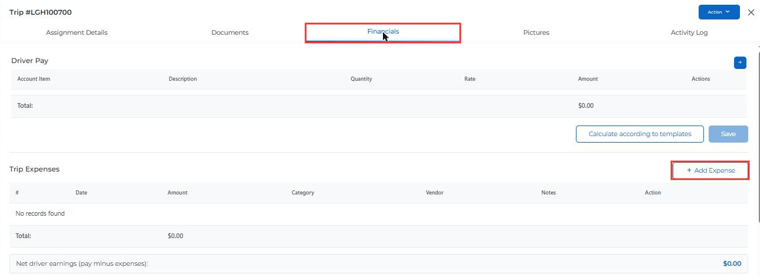
Step 2: Click + Add Expense
Scroll to the Trip Expenses section and click + Add Expense.
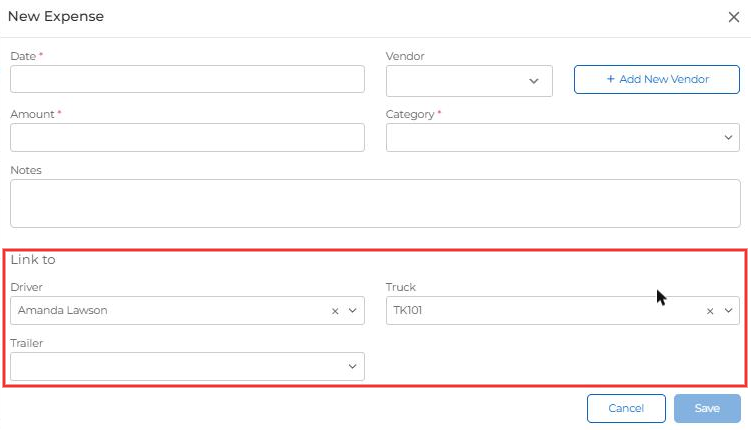
Step 3: Fill in the expense
The New Expense form opens with the trip's Driver, Truck and Trailer already filled in under Link to.
- Required: Date, Amount and Category.
- Optional: Vendor (use + Add New Vendor if it isn't listed yet) and Notes.
Click Save. The expense appears in the trip's Trip Expenses list.
Tip: Use a date that falls within the trip's dates. The trip screen shows expenses for the trip's driver and dates, so an expense dated outside the trip won't appear on the trip.
Step 4: Find it in Accounting → Expenses
Go to Accounting → Expenses. The new Trip # column shows the trip each expense was added from. Type the start of a trip number in the filter box under Trip # to find all expenses for that trip.
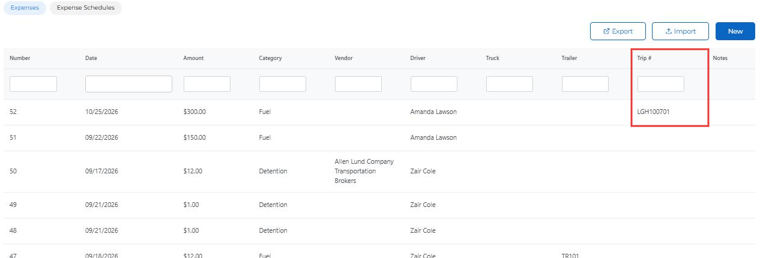
The Trip # is also included as the second column when you click Export.
Good to know: Expenses added before this update, or added directly from Accounting → Expenses, will show a blank Trip #.