
Not sure if your company uses V1 or V3? Check in the web app:
- Go to Dispatch.
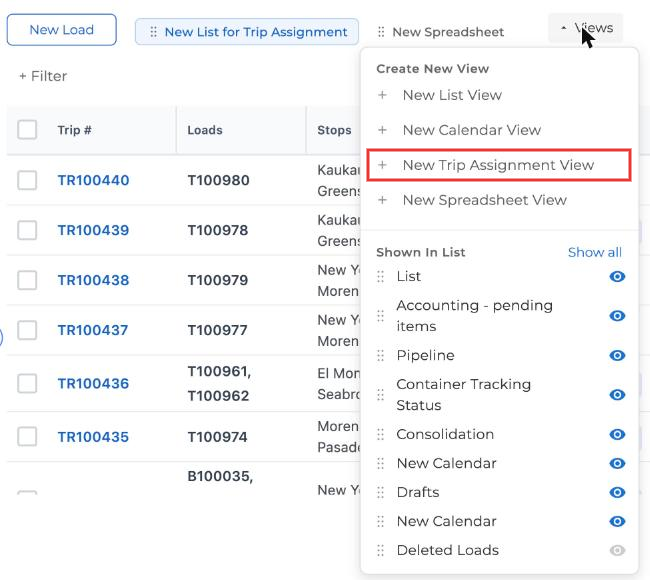
- Click + Views at the top of the page.
- If you see New Trip Assignment View in the list, you're on V3. Use Driver App V3: Trips.
- If you don't see it, you're on V1. Use Driver App V1: Loads.
Simple mode is only available on V1.
This guide is for companies that dispatch drivers by trip. A trip is your full route, and it can include several loads and stops, including yard stops that aren't a pickup or delivery. If your company dispatches one load at a time, see Driver App V1: Loads.
1. View your trip
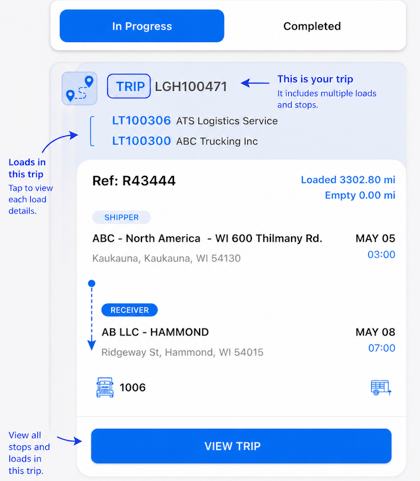
Open the app to see your assigned trip on the In Progress tab. The trip card shows the trip number, the loads in it, the first pickup and last delivery, and your truck. Tap a load number to see that load's details, or tap View Trip to see every stop in order.
2. Start your trip
Tap Start on the trip when you're ready to roll. You have to start the trip before you can take any other action. Buttons like Arrived and Loaded stay unavailable until you do.
3. Work through each stop in order
Each stop tells you what to do next:
- Pickup: tap Arrived, then Loaded. Upload the BOL or pickup photos.
- Delivery: tap Arrived, then Unloaded. Upload the POD or delivery photos.
- Yard (transfer stop): used to move or swap trailers. Tap Transfer Commodity and follow the prompts.
Tapping these at the right time matters. Those times are what Truckpedia uses to track detention and keep your dispatcher and customer up to date.
4. Upload documents
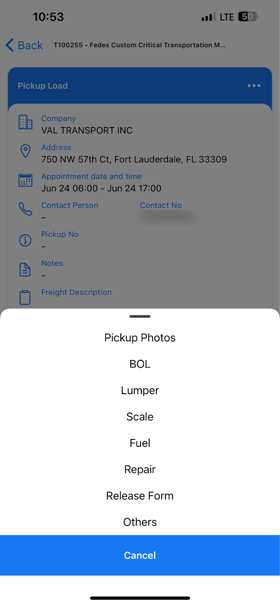
Documents belong to each stop. Tap the camera icon on the stop and choose what you're uploading: photos, BOL, POD, Lumper, Scale, Fuel, Repair, Release Form or Others. If you don't see an upload option, that stop doesn't need one.
5. Drop and hook trailers
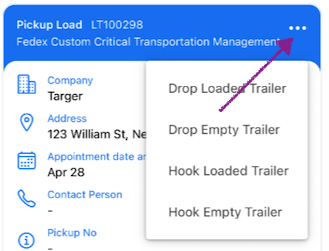
Tap the ••• menu on a stop to record a trailer swap: Drop Loaded Trailer, Drop Empty Trailer, Hook Loaded Trailer or Hook Empty Trailer. See Driver App: How to Drop and Hook Trailers.
6. If your trip changes
Your dispatcher can change the trip while you're on the road, for example adding a stop, changing the order or updating details. The app updates right away, so if something looks different than before, that's expected. Some trips only ask you to start and end the trip. If you're not sure what to do, check with your dispatcher.
7. Request time off
Go to Settings → Time Off Calendar, pick your dates and submit. See Driver App: How to Request Time Off.
Good habits
- Complete stops in order.
- Upload documents at the stop they belong to.
- Check the stop type (pickup, delivery or yard) before you tap anything.
- If something looks off, ask dispatch before moving on.
Need help? Email help@truckpedia.io.