
Watch a step-by-step video on how to broker a load in Truckpedia
Step 1: Create the Load
Click New Load in Dispatch and enter the load details manually or drop in the rate confirmation. Make sure the customer, stops and dates are correct.
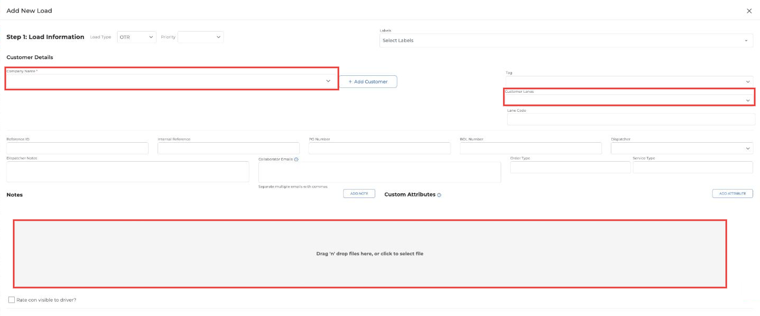
Step 2: Select the Brokerage Company (Optional)
This step is optional. If you have your brokerage company set up in Tags, choose it in the Tag field at the top of Step 1 of the load (for example, SecureExpress) so the load is billed under the right company. If you don’t have a brokerage company set up in Tags, leave the Tag field empty.
Step 3: Add What You’re Charging the Customer
In Step 3: Load Charge, add the charges you’re billing your customer (hauling fee and any accessorials), or pick a customer rate sheet.

Step 4: Choose the Third-Party Carrier
- In Step 4: Assign Driver & Equipment, select Third Party Carrier.
- Pick the carrier from Carrier Name (or click + Add Carrier). Add the carrier’s driver name, phone, truck and trailer if you have them.
- Under Charges, enter what you’re paying the carrier: hauling fee, fuel surcharge, accessorial fees and any deductions.
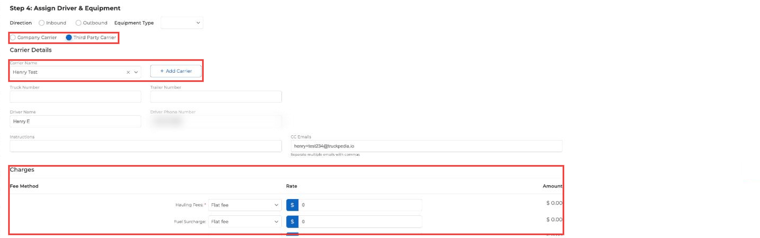
Step 5: Review and Send the Rate Confirmation
- Click View Rate Confirmation or View BOL to check them before sending.
- To send the rate con and ask the carrier to accept it, choose Tender Load to Carrier or Tender Load & BOL to Carrier. See How to Send a Rate Confirmation to a Carrier.
- Click Save or Save & Close.
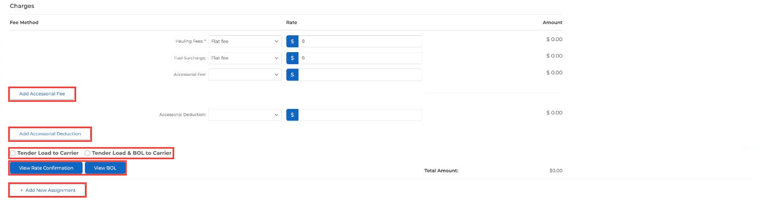
Step 6: Find the Documents
The rate confirmation and other paperwork are in the load’s Documents tab.
Using a Third-Party Carrier as an Asset Carrier
If a carrier runs under your operating authority, you can set their driver up in your own fleet:
- Go to Assets → Drivers, add the driver and set their Tag to your company (e.g., Secure Express).
- On the load, choose Company Carrier in Step 4 and assign that driver.
- Click Save. The load is handled like one of your own drivers’ loads, and the driver will need the Truckpedia Driver App.
For any further assistance, contact our support team at help@truckpedia.io.