
The Truckpedia CRM helps your team keep track of the companies you're selling to, the follow-up calls you need to make, and what was said on each call. It's built into your TMS, so there's nothing extra to install.
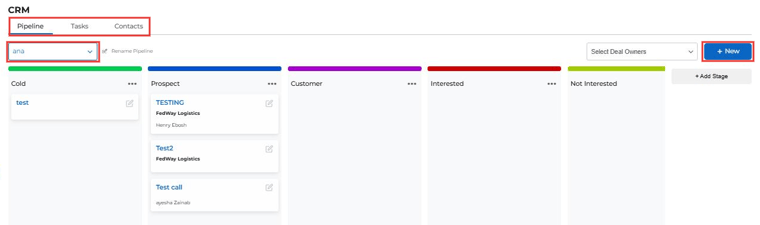
The CRM has three tabs: Pipeline (your deals), Tasks (your follow-ups) and Contacts (the people you talk to).
1. Open the CRM
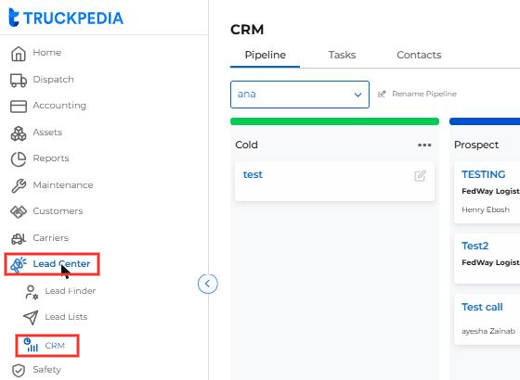
In the left menu, go to Lead Center → CRM.
2. Get to know the Pipeline
The Pipeline tab shows your deals as cards on a board.
- Use the pipeline dropdown at the top left to switch between pipelines. For example, you might have one pipeline for current customers and another for new prospects.
- Each column is a stage, like Cold, Prospect or Interested.
- Each card is a deal. It shows the deal name, the company and who it's assigned to.
- Use Select Deal Owners to see only the deals that belong to certain people.
3. Create a pipeline or a deal
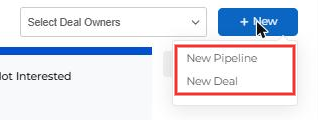
Click + New at the top right, then choose New Pipeline or New Deal.
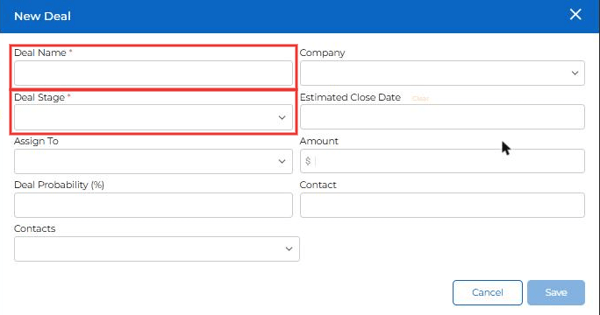
For a new deal, only Deal Name and Deal Stage are required. You can also add the company, who it's assigned to, an estimated close date, the amount, the deal probability and the contacts for this deal. Click Save when you're done.
4. Set up your stages
- Click + Add Stage to add a new column to the pipeline.
- Click the ••• next to a stage name to Rename or Delete it. Delete is greyed out while the stage still has deals in it.
- Click Rename Pipeline next to the dropdown to change the pipeline's name.

5. Open a deal
Click a deal card to open it. The left side shows the deal details, its contacts and its tasks. The right side has five tabs:
- Activities: a history of everything that happened on the deal, like stage changes, new notes, new tasks and added contacts. Truckpedia logs these for you. You don't need to type them in.
- Notes: your call notes for this deal.
- Email: emails for this deal.
- Contacts: the people linked to this deal.
- Tasks: follow-ups for this deal.
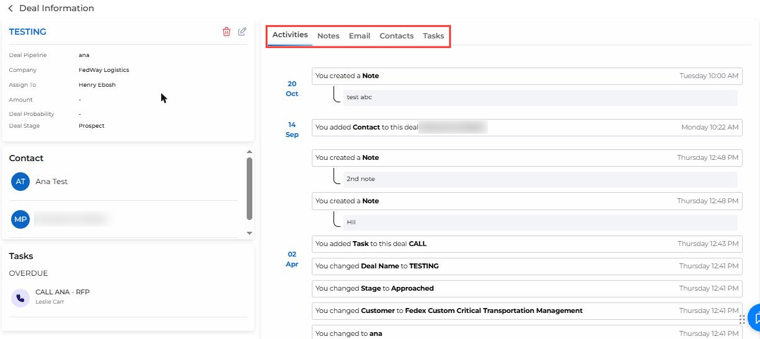
To move a deal to another stage, click the pencil icon next to the deal name, change the Deal Stage and click Update.
Tip: The deal page is the best place to see the full story of a customer. Notes, tasks and activity are all in one spot.
6. Add notes after every call
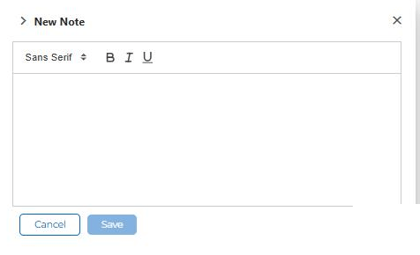
Open the deal, go to the Notes tab and click + New Note. Type what happened and click Save.
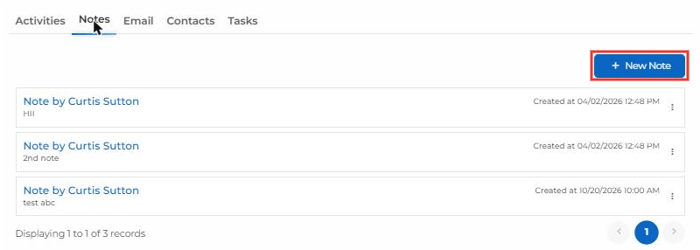
Each note is saved on its own with your name and the date and time. A new note never replaces an old one, so you can always look back at what happened last time. For example: "Called 3 times, no answer. Sent a text. Try again Tuesday."
7. Add follow-up tasks
Open the deal, go to the Tasks tab and click + New Task. You can also add a task from the main Tasks tab (see step 8).
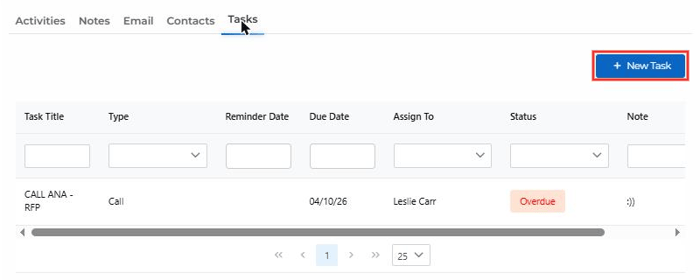
Fill in the task:
- Task Title (required): make it clear enough that anyone on your team knows what to do. "Call Ana about the Ontario quote" is better than "Call".
- Type (required): To-do, Call or Email.
- Deal: the deal this task belongs to.
- Due Date (required): when it needs to be done.
- Reminder Date: optional, but we recommend setting it a day or two before the due date so you get a heads-up.
- Priority (required): High, Medium or Low. Agree as a team on what each one means, so you know which calls to make first on a busy day.
- Assign To: who will do it.
- Note: any details the person needs before they call.
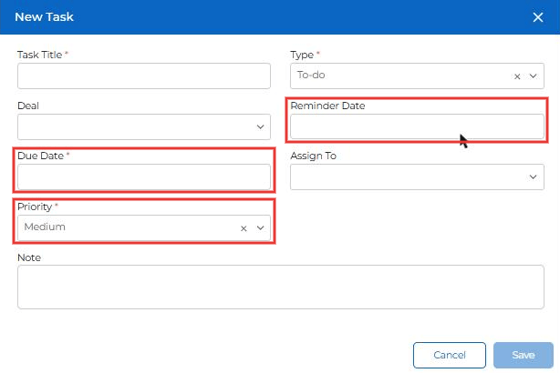
Good to know: Tasks don't repeat on their own. After you make the call, update the due date to the next follow-up (for example, two weeks or a month out), or create a new task.
8. See all your tasks in one place
The Tasks tab at the top of the CRM shows every task across all deals. Use the boxes under each column to search and filter. For example, filter Status by Overdue, Due Today, Upcoming or Completed, or filter Assign To to see one person's list. Use the pencil icon to edit a task.
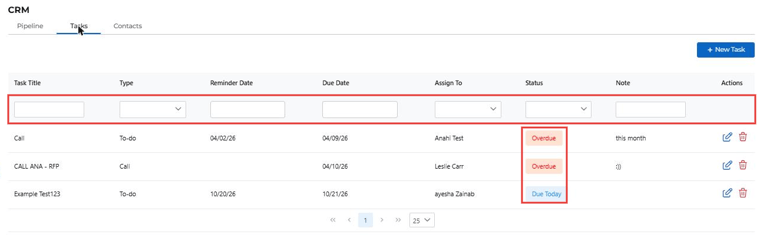
Tip: Check the Tasks tab first thing in the morning. If you have more follow-ups than time, do the High priority ones first and move the rest to another day.
9. Manage contacts
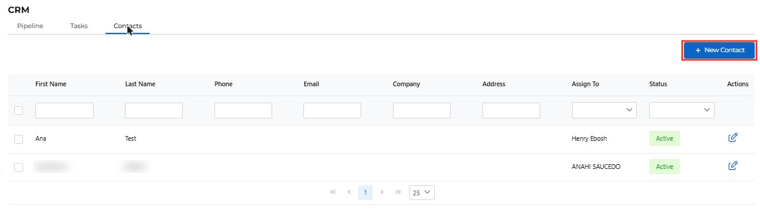
The Contacts tab lists everyone in your CRM. Click + New Contact to add one. First Name, Last Name and Status are required. You can link the contact to one or more deals in the Deals field.
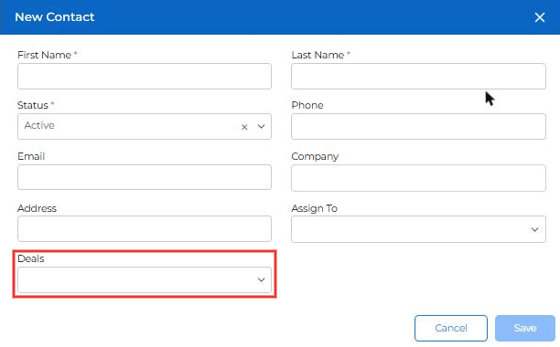
You can also add contacts from inside a deal, on its Contacts tab.
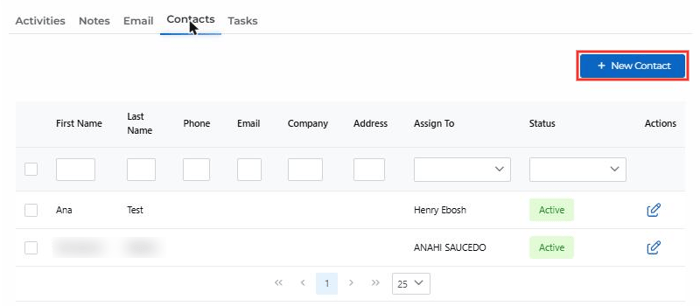
Contacts are shared across all your pipelines. You can't keep a separate contact list for each pipeline. To keep track of which pipeline a contact belongs to, link them to the right deal.
10. Keep future leads out of your pipeline
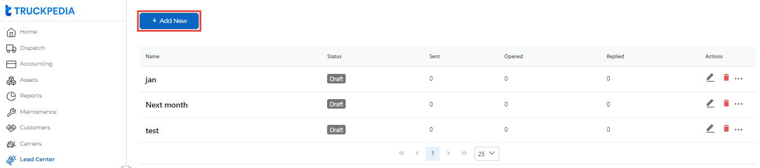
Your CRM works best for people you're already talking to. For leads you plan to reach out to later, use Lead Center → Lead Lists instead. Click + Add New to make a list, like "Next month". Those leads stay in the list without crowding your pipeline. To find new leads, see How to use Lead Finder.
Another option: Add the same word to the note on related tasks, like "next month". Then type that word in the Note filter on the Tasks tab to see only those tasks.
Good to know
- The CRM doesn't connect to your phone or email. Log calls and emails yourself with notes.
- If someone on your team doesn't show up in the Assign To list, their user role may not have CRM access. Ask your admin to update their role in Settings → Manage User.