
Tracking Methods
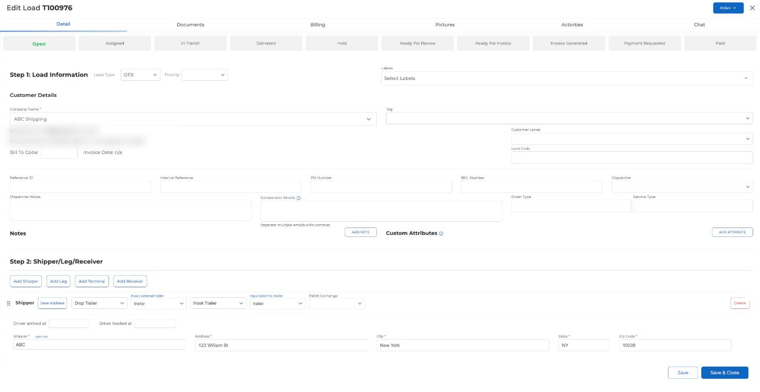
1. Collaborator Emails for Automated Updates
- Open the load in Dispatch.
- In Step 1, enter one or more addresses in Collaborator Emails (separate them with commas).
- Collaborators get tracking updates as the driver updates the load (with an automation set to email load collaborators).
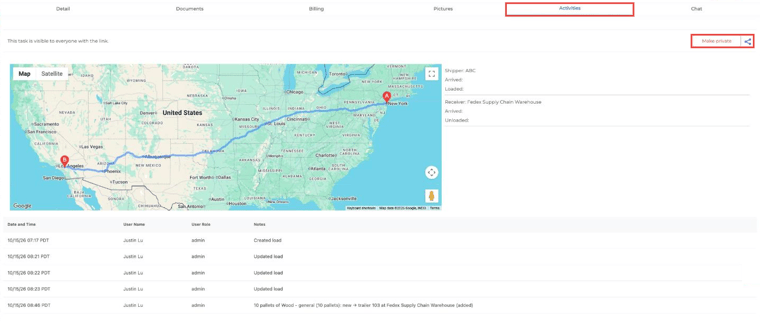
2. Share the Load Tracking Link
- Open the load and go to the Activities tab.
- Click the share icon in the top right to copy the load’s tracking link, then paste it into an email.
- The link is visible to anyone who has it. Click Make private to turn sharing off.
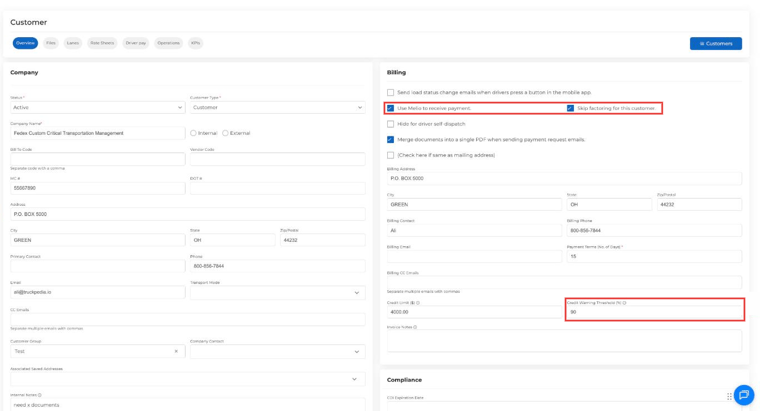
3. Automatic Status Emails to a Customer
- Go to Customers and click Edit on the customer.
- In the Billing section, check Send load status change emails when drivers press a button in the mobile app.
- Save. The customer’s email will get an update each time the driver updates the load.
Best Practices
- Collaborator emails: best when the contact changes from load to load, like brokers.
- Tracking link: good for one-off updates.
- Customer status emails: best for direct customers who want regular updates to the same email.
For more control over who gets which updates, see How Do I Set Up Automations?
For any further assistance, contact our support team at help@truckpedia.io.