
🎥 Watch the video on how to use Maintenance
Where to find it
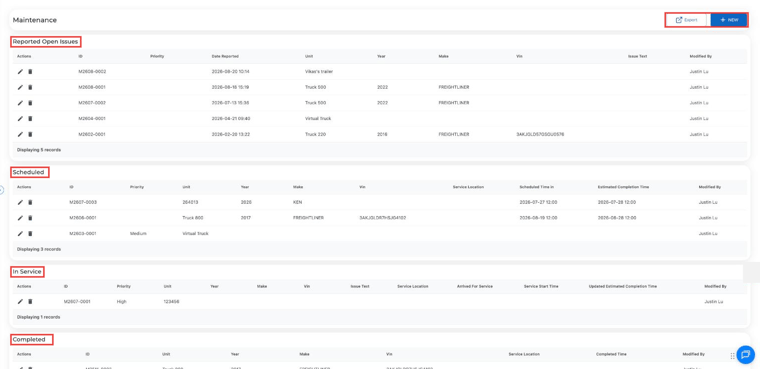
Click Maintenance (the wrench icon) in the left menu. You'll see four sections:
- Reported Open Issues: problems that need attention
- Scheduled: service appointments that are booked
- In Service: repairs in progress
- Completed: work that's finished
Click Export at the top right any time to download your maintenance records.
Report a new issue
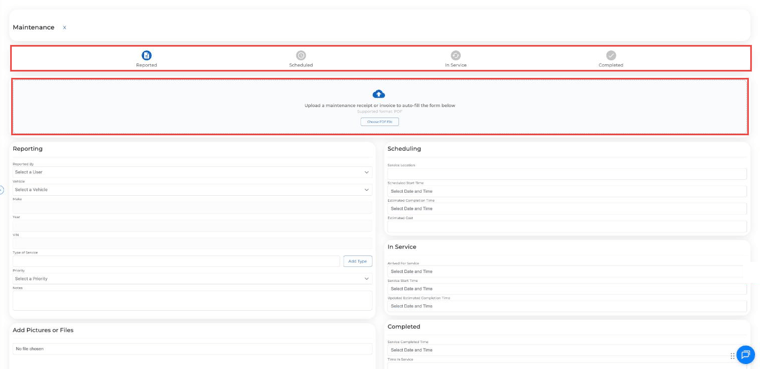
- Click + NEW at the top right.
- Have a receipt or invoice? Upload the PDF in the box at the top and Truckpedia fills in the form for you. Check the details before you save.
- Otherwise, fill in the Reporting section: who's reporting it, the vehicle (make, year and VIN fill in automatically), the type of service, priority and any notes.
- Add pictures or files if you have them.
- Click SAVE. The issue shows up under Reported Open Issues.
Move an item through the workflow
Open an item with the pencil icon and fill in the next section as the work moves along. The steps at the top of the form show where it stands:
- Reported → Scheduled: add the service location, start time, estimated completion time and estimated cost.
- Scheduled → In Service: add when the truck arrived, when work started and any new completion estimate.
- In Service → Completed: add the completed time, time in service and final cost.
This keeps your whole team on the same page about where each truck stands.
Dispatch warning for trucks in maintenance
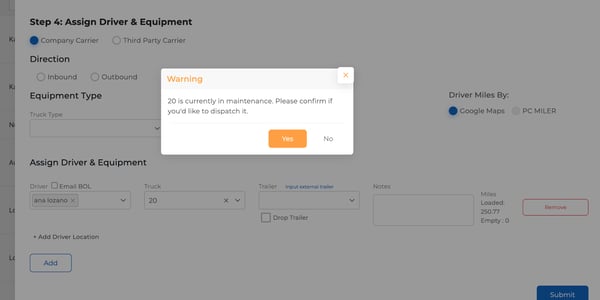
If a dispatcher tries to assign a truck that's in maintenance, Truckpedia shows a warning such as "20 is currently in maintenance. Please confirm if you'd like to dispatch it." This helps avoid sending out equipment that isn't ready.
Tracking maintenance costs
The Maintenance module tracks the repair workflow and costs on each item, but it doesn't add them to your books. To record the expense, go to Accounting → Expenses and add a new expense with the vendor, truck, amount and category. We suggest doing this once the work is In Service or Completed. See the Accounting Module Overview for details.
Questions? Email help@truckpedia.io.