
Video on the Accounting module
1. Open Accounting
- Click Accounting (the card icon) in the left menu.
- Click the arrow on the left side of the screen to expand or collapse the menu.
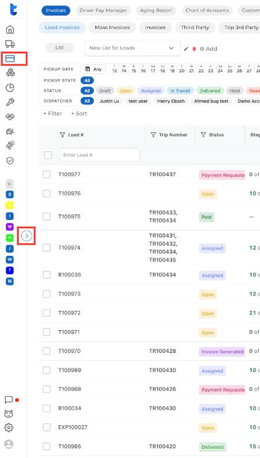
Across the top you’ll see the Accounting tabs: Invoices, Driver Pay Manager, Aging Report, Chart of Accounts, Customer Rate Sheets, Expenses, Fuel Cards, Fuel Expenses and Accessorial Services.
2. Invoices Tab
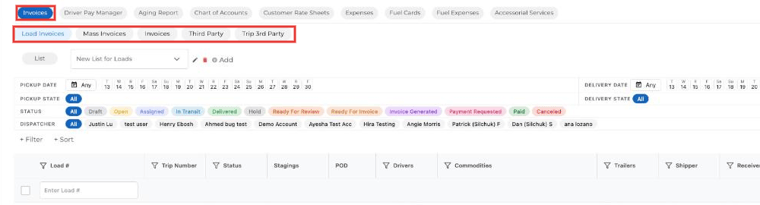
The Invoices tab is where you view and manage everything you bill. It has five sub-tabs:
- Load Invoices: invoices tied to specific loads, with filters by pickup/delivery date, status and dispatcher.
- Mass Invoices: one invoice covering several loads for the same customer. See Mass Invoice in Truckpedia.
- Invoices: invoices not tied to a specific load.
- Third Party: what you owe third-party carriers on brokered loads.
- Trip 3rd Party: trips dispatched to third-party carriers, where you upload and track carrier invoices. See How to Upload and Track Third-Party Carrier Invoices.
Use + Filter, Columns and saved lists to set up the view you need.
3. Driver Pay Manager
This tab is used for paying drivers. Which sub-tabs you use depends on your driver pay version:
- Driver Pay V3: Settlement Planning (pick trips and create a settlement), Settlements (review, calculate, approve and send) and Driver Pay Items (your pay rules). See How to Create Driver Pay Settlements – V3.
- Driver Pay V1: Driver Pay Planning (load-based or trip-sheet-based) and Driver Pay Settlements. See How do I pay drivers?.
- Trip Sheet Templates: create trip sheets for drivers to fill out in the app. See Trip Sheets in Truckpedia TMS.

4. Aging Report
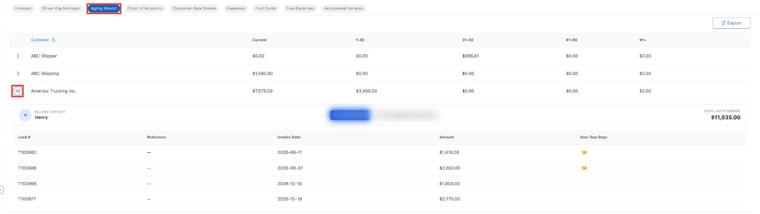
The Aging Report shows what each customer owes, grouped by how old it is: Current, 1–30, 31–60, 61–90 and 91+ days.
- Click the arrow next to a customer to see their billing contact, total outstanding and each open invoice with its invoice date, amount and Over Due Days.
- Click Export to download the report.
5. Chart of Accounts
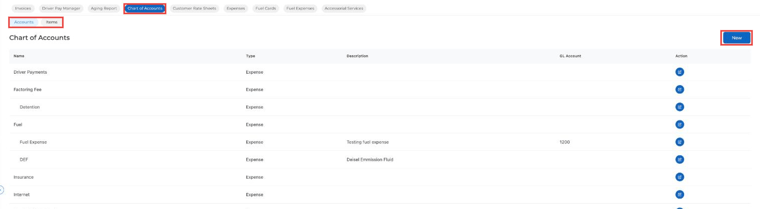
This tab holds the accounts and items used across your accounting.
- Accounts: the income and expense categories used for tracking and reports.
- Items: the line items that appear on invoices, rate sheets and driver settlements.
- Click New to add one. See How to Add Items to Your Chart of Accounts.
6. Customer Rate Sheets
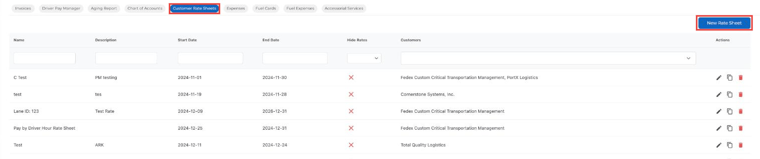
Build rate sheets that fill in load charges automatically (hauling fee, fuel surcharge, detention and more) and assign them to one or more customers. Click New Rate Sheet to start. See How to Automate Customer Rate Sheets.
7. Expenses Tab
This is where you add and manage expenses from your operations.
- New: add an expense manually.
- Import / Export: bring expenses in from a file or download them.
- Expense Schedules: set up recurring expenses (like monthly insurance) that are added automatically.
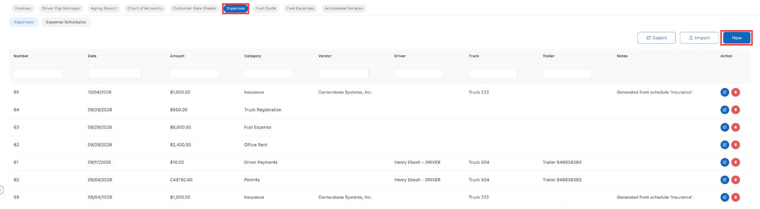
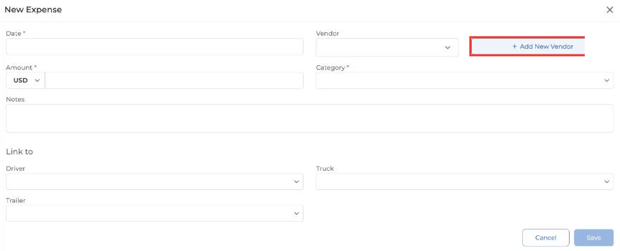
Each expense has a date, amount, category and optional vendor. Click + Add New Vendor to create a vendor on the spot, and link the expense to a driver, truck or trailer.
8. Fuel Cards
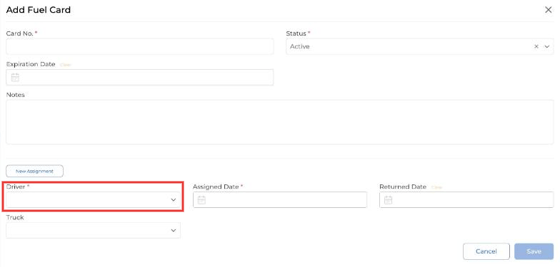
Add your fuel cards and assign each one to a driver (and optionally a truck), so fuel transactions show the right driver.

Click New, enter the card number, then click New Assignment to pick the driver and assigned date.
9. Fuel Expenses
This tab shows your fuel purchases in two places:
- Automated Transactions: purchases pulled in from a connected fuel card provider.
- Manual Imports: fuel purchases you upload from a file. See How to Import your Fuel Expenses.

10. Accessorial Services
Use this tab to record services that aren’t part of a regular load, such as Trailer Movement, Trailer Recovery, Hazmat, Bobtail or Pending Trailer Recovery. Pick a date range and type, then click Add New.

For any further assistance, contact our support team at help@truckpedia.io.