
What You'll Learn
- How to add new users to Truckpedia.
- How to assign roles and manage access levels.
- How to update, deactivate or reactivate user accounts.
Steps to Add a New User
1. Access User Management Settings
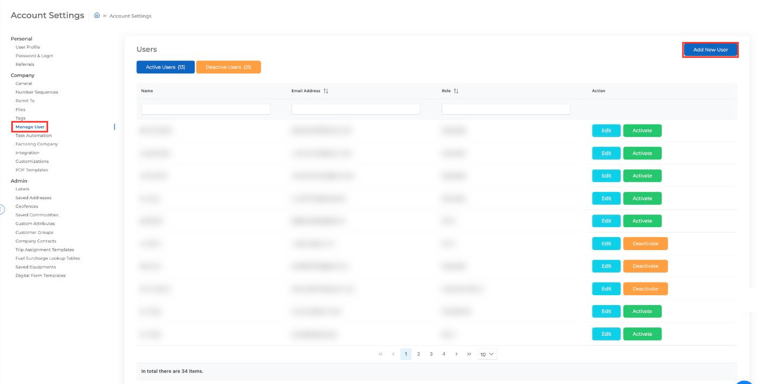
- Click the gear icon at the bottom left of your Truckpedia dashboard to open Account Settings.
- Under Company, select Manage User.
2. Add a New User
- Click Add New User in the top right.
- Enter the user's first name, last name and email address.
3. Assign User Role
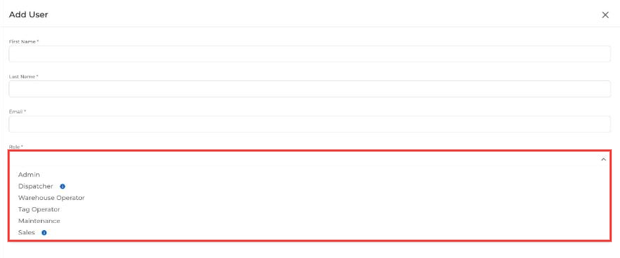
Under Role, choose the appropriate access level for the user:
- Admin: Full access to all modules and settings.
- Dispatcher: Limited admin access, including accounting, reports, marketing campaigns and making changes in Settings. No access to the Home dashboard.
- Warehouse Operator: View-only access to assigned loads, times, documents and pictures.
- Tag Operator: Can only see loads linked to the tags assigned to them.
- Maintenance: Access to the Maintenance module and view-only access to drivers, trucks and trailers.
- Sales: Limited access, including customers, carriers, marketing CRM, Lead Finder, inbox and marketing campaigns.
Hover the info icon next to a role in the dropdown to see what it can access. For a full breakdown of each role, see How to Add New Users in Truckpedia.
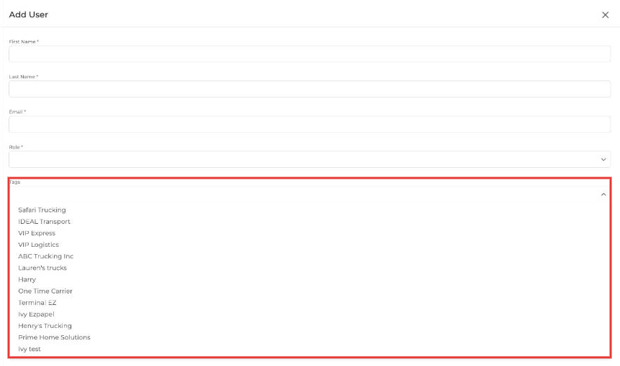
Tag Operators: choose their tags
If you pick Tag Operator, use the Tags field to choose which tags (companies, terminals or MCs) that user can see.
4. Submit the User Info
- Once you’ve filled in the details and assigned the role, click Submit.
- An email will be sent to the user inviting them to set up their password and log in.
Managing User Access
5. Edit User Permissions
- To change a user’s role or tags, click Edit next to their name.
- Update the role or tags as needed, then click Submit.
6. Deactivate or Reactivate a User
- As an Admin, you can deactivate a user’s account at any time by clicking Deactivate next to their name.
- Deactivated users move to the Deactive Users tab. Click Activate to give them access again.
- Always double-check role assignments to make sure users have the right level of access.
- If you run into any issues, reach out to help@truckpedia.io.