
Driver Pay V1. This guide covers Driver Pay V1, which uses the Driver Pay Planning and Driver Pay Settlements tabs. If your account uses Driver Pay V3 (Settlement Planning and Settlements), see How to Create Driver Pay Settlements – V3.
Before you start, set up a trip sheet template and assign it to your drivers. See Trip Sheets in Truckpedia TMS.
Paying drivers using trip sheets
- Go to Accounting → Driver Pay Manager → Driver Pay Planning.
- Click Mode and choose Trip Sheet-Based. You'll see drivers whose pay comes from their trip sheet entries.
- Make sure the right date range is selected at the top right.

- Review the trip sheet entries for each driver.
- Check the entries you want to pay (or Select All) and click End trip.
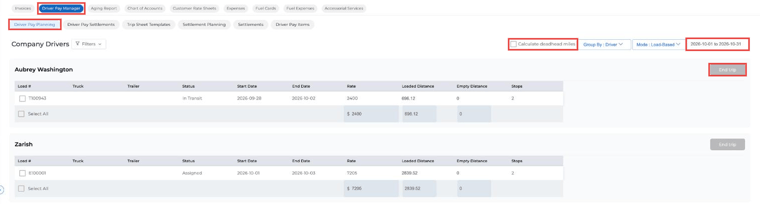
The trip sheet pay now shows up in Driver Pay Settlements.
Checking and approving payments
- Open Driver Pay Settlements and click the blue edit icon on the settlement.
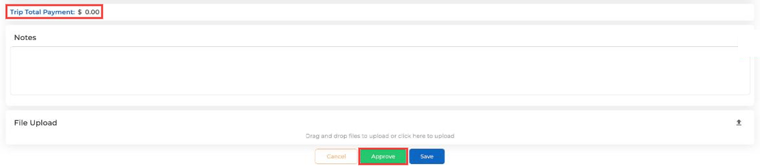
- Edit details, add payments or adjustments, and check the trip total.
- Click Approve to finalize it. If something's wrong, delete the settlement and end the trip again.
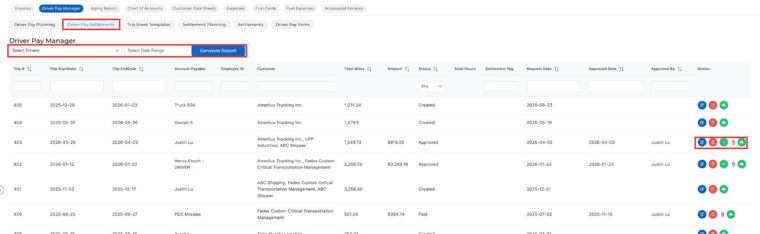
After approval, click the Invoice (paperclip) icon to see the pay statement, and Mark as Paid (green check) once the driver is paid.
Key takeaways
- ✅ Trip sheets give you a structured way to track driver pay.
- ✅ They're assigned per driver and show up in the driver app.
- ✅ Drivers fill out and submit trip sheets in the app.
- ✅ You pay them in Driver Pay Planning using Trip Sheet-Based mode.
Need help? Email help@truckpedia.io.