
When you hire third-party carriers, you need to know when each carrier's invoice came in and which invoice number it was, so you can match their bill and pay on time. Truckpedia lets you record the received date and the carrier's invoice number when you upload their invoice, and then see, filter and export both from your lists.
Step 1: Upload the carrier's invoice with its details
- Go to Accounting → Invoices → Trip 3rd Party.
- Find the trip and click the purple Upload icon in the Actions column.
- Choose the invoice PDF.
- Received Date fills in with today's date. Change it if you got the invoice on a different day.
- Type the Invoice # printed on the carrier's own invoice, so their bill can be matched when you pay.
- Click Upload.
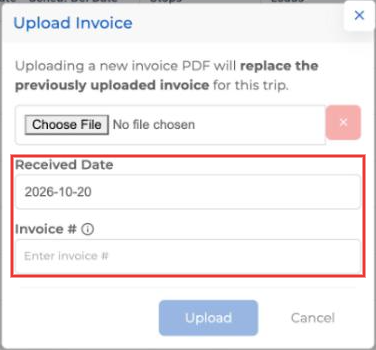
Uploading a new invoice PDF replaces the one already uploaded for that trip. Each upload starts with a blank invoice number, so enter it again when you replace a file.
Step 2: Fix the details later if needed
If you entered the wrong date or number, open the trip from the list and use Edit Invoice Details to update the received date or invoice number. Clear a field to remove it.
Step 3: Show the columns in your list
- On the Trip 3rd Party tab, click Columns.
- Search for 3rd Party.
- Click the eye icon next to 3rd Party Received Date and 3rd Party Invoice #, then click Save.
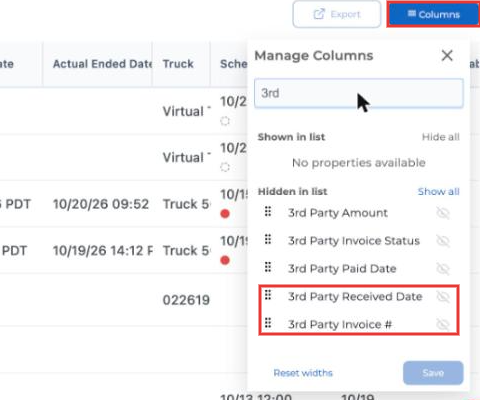
You can also show 3rd Party Amount, 3rd Party Invoice Status and 3rd Party Paid Date from the same panel.
Step 4: Filter by received date or invoice number
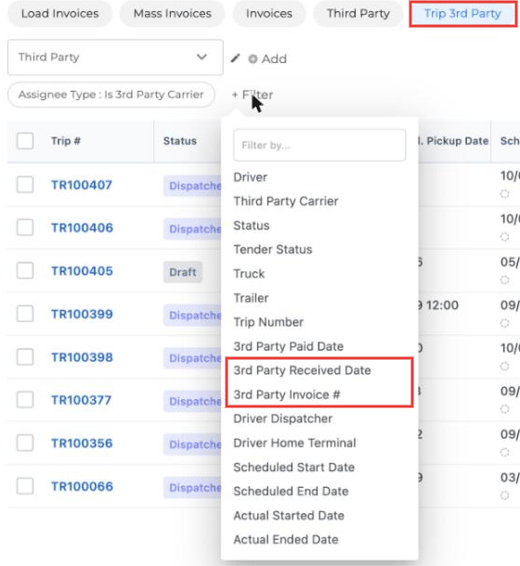
Click + Filter and choose 3rd Party Received Date to see invoices received in a date range, or 3rd Party Invoice # to look up a carrier's invoice by its number (exact match or the start of the number).
Step 5: Add them to a spreadsheet view (optional)
In a Dispatch spreadsheet view, click + at the end of the column headers and add Third Party Received Date and Third Party Invoice #. They're included when you export the spreadsheet.
Tips
- Enter the invoice number every time you upload. It's the fastest way to find a carrier's bill when they call about payment.
- Use the received date filter at the end of each week to see which carrier invoices came in and still need to be paid.
- Once you've paid the carrier, mark it as paid. See Mark a Third-Party Carrier as Paid.
Questions? Email help@truckpedia.io.