
The Financials tab on a trip now gives you a full money picture for that trip: what it earned, what was spent on fuel and other costs, and the resulting profit, both in total and per mile.
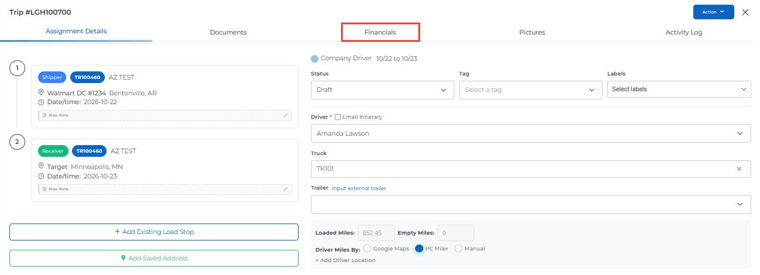
Step 1: Open the trip's Financials tab
Open the trip from Dispatch and click the Financials tab in the trip sidebar.
Step 2: Review the sections
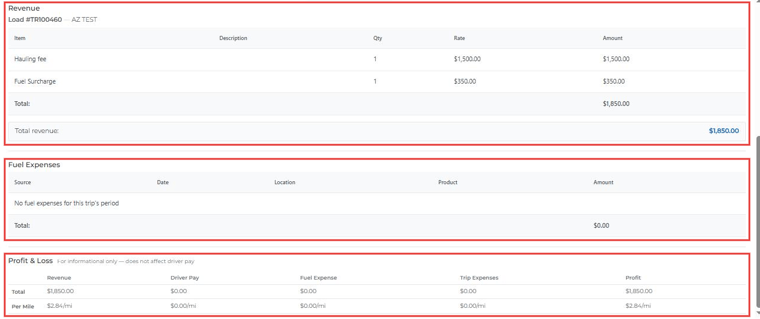
Scroll down to see these sections:
Revenue
Shows every load on the trip with its charges (Item, Description, Qty, Rate and Amount), a total for each load, and the Total revenue for the whole trip.
Fuel Expenses
Shows fuel card transactions for the trip's driver during the trip's scheduled dates, with Source, Date, Location, Product and Amount. If there are none, you'll see "No fuel expenses for this trip's period".
Profit & Loss
A summary with a Total row and a Per Mile row for Revenue, Driver Pay, Fuel Expense, Trip Expenses and Profit.
Good to know: The Profit & Loss summary is for information only. It does not change driver pay. Lumper charges are not counted as revenue.
Also on this tab
- Driver Pay: the driver's pay items for the trip, with Calculate according to templates.
- Trip Expenses: expenses added to the trip (see Trip # on Expenses Added from Trip Financials).
- Net driver earnings: pay minus expenses.
Tip: To see fuel costs here automatically, connect your fuel card in Account Settings → Integration → Fuel Card.